
The Project View gives you a complete overview of all projects and the people assigned to them.
Here is where you plan and schedule hours, directly linking work to specific projects and team members.
Project View complements the Team View, which looks from the people side.
It’s designed for managers to:
- Schedule hours for projects
- See who is working on what
- See how much time each person is allocated
- Spot when people are available or on leave
Key Features
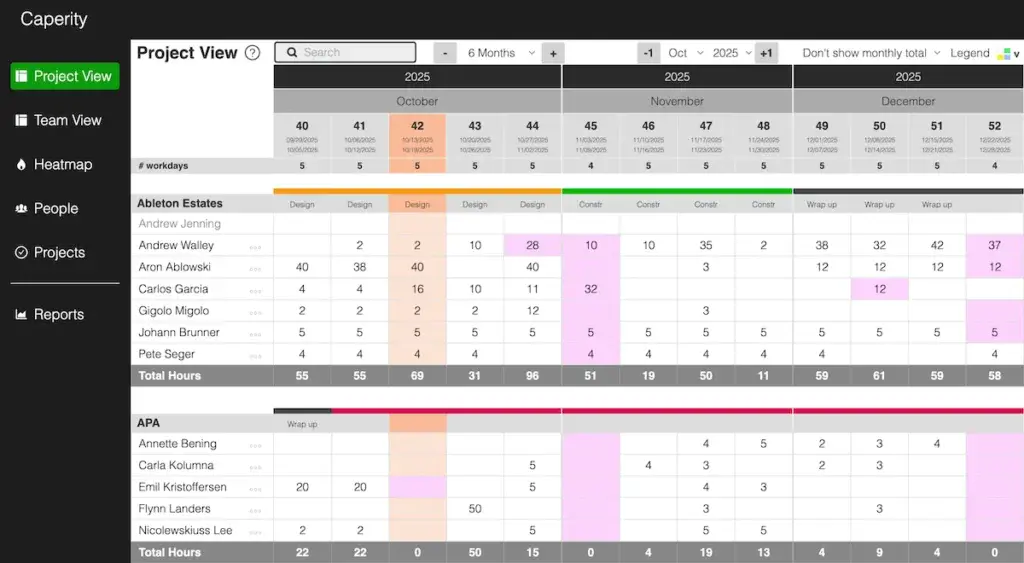
- Project-first layout: Each project appears as a main item, with its assigned team members listed underneath.
- Calendar grid: Displays planned hours per day or week (depending on the selected calendar mode).
- Project phases: Phases visually segment the project timeline within the grid, making it easier to see where work falls in relation to key phases (e.g. Design, Development, Launch). How to set up phases
- Milestones: Milestones are shown as markers, helping users align workloads with key delivery points. How to set up milestones
- Color-coded cells: Highlighted cells indicate absences or holidays (pulled from leave tracking)
- Range Fill: Easily fill multiple days or weeks with planned hours while respecting holidays and absences. Using range fill
Not seeing anything in Project View?
That’s because the Project View only displays content once projects are created and people are assigned to them.
To get started:
- Create your projects: Go to the Projects page and add projects.
- Add your team members: Make sure all people who will work on projects are listed on the People page. You can add them manually or import them if you’re setting up multiple at once.
- Assign people to projects: Open each project and assign the relevant team members.
Understanding the Calendar Header
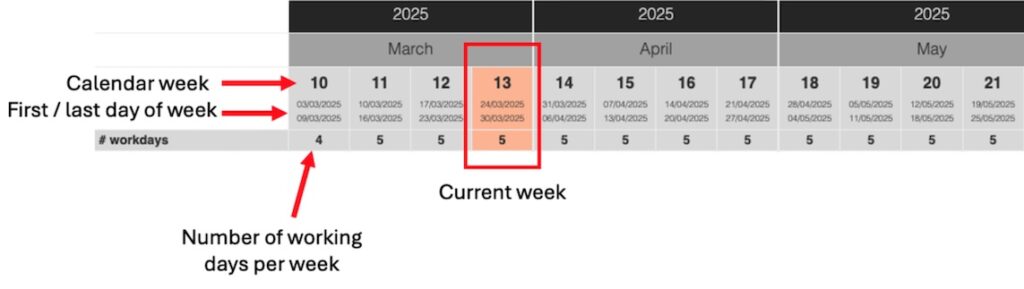
The calendar header gives you quick context for the time period you’re viewing in the Project View.
Weekly format: Each column represents one ISO week. The header shows:
- The week number (e.g., Week 42)
- The date range for that week (e.g., Oct 13 – Oct 19)
- The number of working days in that week, based on your or holiday setup
Daily format: Each column represents a single day, labeled with the weekday name and date (e.g., Mon 14 Oct).
Navigating the Project View
The navigation bar at the top helps you move around quickly and adjust what’s displayed on screen.
- Search field: Use the search box on the left to quickly find a specific project or team member. Results update as you type.
- Visible months: Choose how many months you want to display at once. You can adjust this depending on your screen size. If the first column disappears, reduce your browser zoom.
Date selector: Use the dropdowns to jump directly to a specific month and year. The + / − buttons move the view one month forward or backward. - Monthly totals: Toggle between Show monthly total and Don’t show monthly total. When totals are shown, each project displays a monthly summary broken down by team member — useful for a quick overview of total planned hours.
- Legend: A color guide on the right helps you interpret what the colors in the calendar cells mean (e.g., planned hours, absences, holidays).
Making Everything Fit on Screen
Depending on how many months you display, the first column (projects and team member names) may shift out of view on smaller screens.
If that happens:
- Reduce your browser zoom level until the first column becomes visible again.
- You can also decrease the number of months shown to create more space for names and details.
The zoom function is available in your browser’s menu (usually under View → Zoom) or can be adjusted using keyboard shortcuts like Ctrl + / − (Windows) or ⌘ + / − (Mac).
Tip: A zoom level of around 80-90% usually provides a good balance on most laptop screens.