
Caperity support two-factor-authentication (2FA), enabling you to protect your account against unauthorized access.
This feature is available to all users.
What is 2FA?
Two-factor authentication (2FA) adds a second proof of identity on top of your password — in the case of Caperity a one-time code from an authenticator app.
So even if someone learns your password, they still can’t log in. This extra layer blocks common attacks like phishing, credential stuffing, and password reuse.
2FA is easy to set up and lowers the risk of account takeover without making the sign-in process complicated.
Caperity supports two-factor authentication (2FA) using standard authenticator apps like Google Authenticator, Microsoft Authenticator, 1Password or Authy.
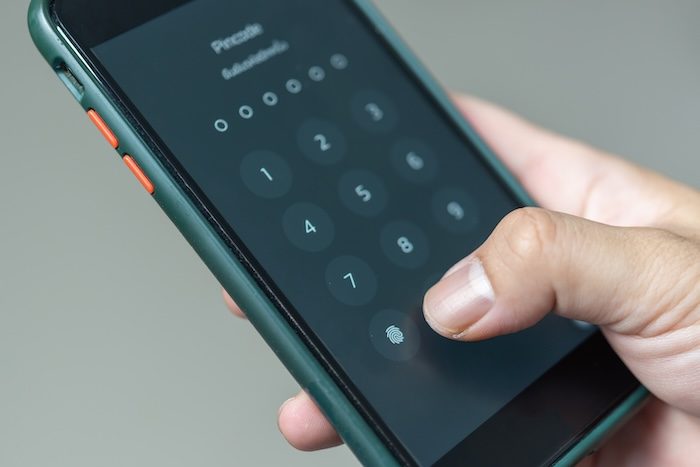
Setting up 2FA for Caperity
You need to be signed in to set up 2FA.
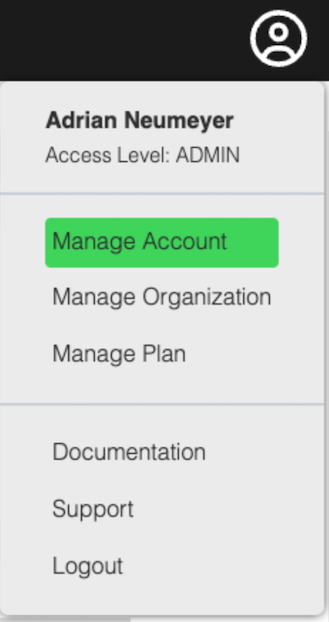
Click on the account menu on the top right. Choose Manage Account:
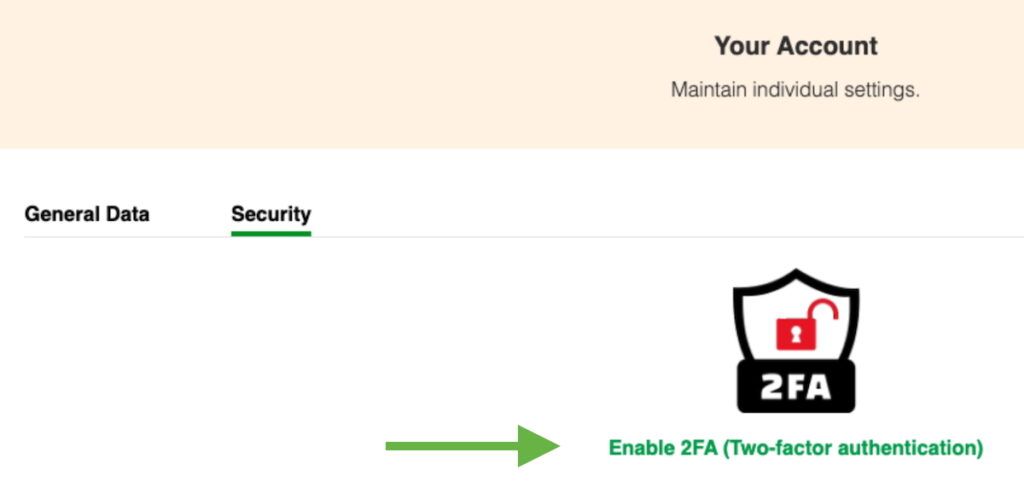
Click on the Security tab and click on the Enable 2FA (Two-factor authentication) icon:
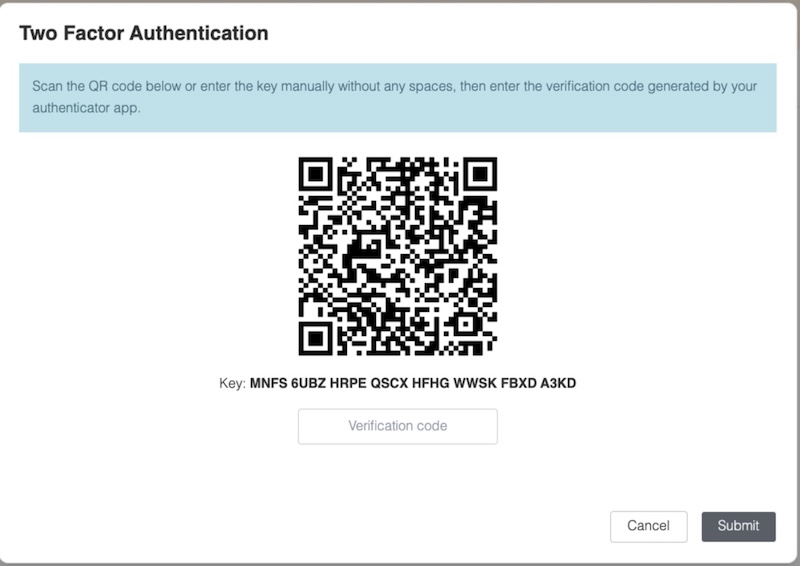
A dialog window with a QR code will appear. Open your authenticator app, add a new account and scan the QR code. This will register Caperity in your authenticator app.
Your authenticator app will return a 6-digit verification code. Enter the code in the input field shown below and press Submit.
Caperity provides a set of backup codes you can use to sign in when you don’t have access to your authenticator app. Keep these codes in a safe place.