Caperity
Project capacity planning made simple
Learn how to add and manage people in Caperity.
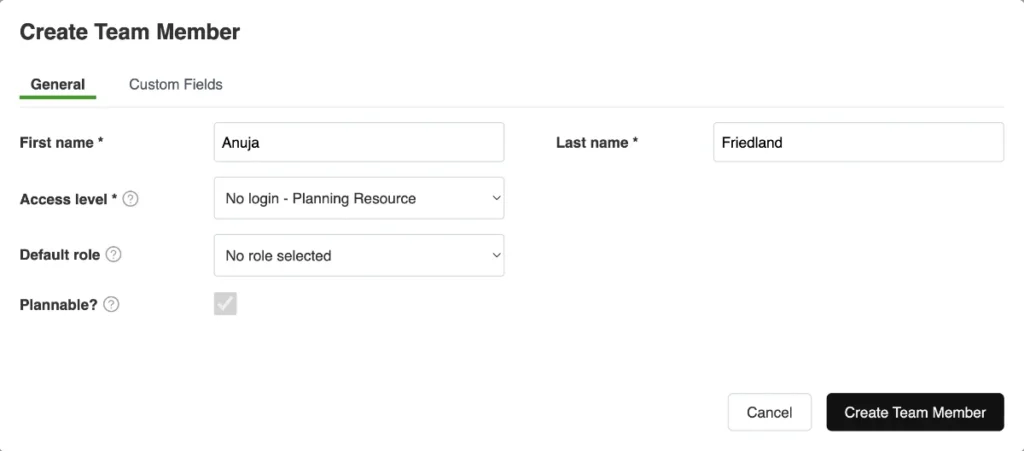
To add a team member, got to People → Create Team Member
Select the access level to set permissions. Team members can also be set up as planning resources — without a login.
Set the Plannable flag for team members you want to include in planning.
Access Levels define what team members can see and do in Caperity:
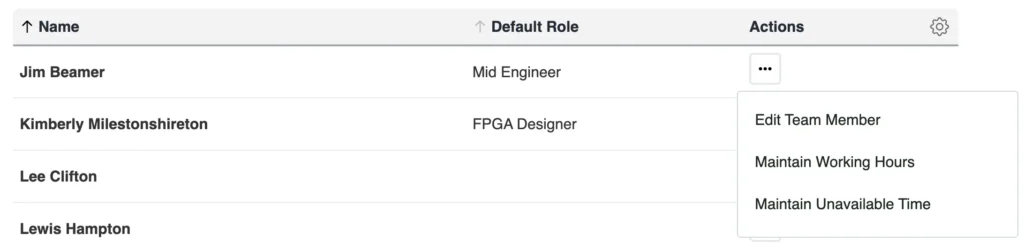
Working hours can be set individually per team member.
Go to People → Maintain Working Hours:
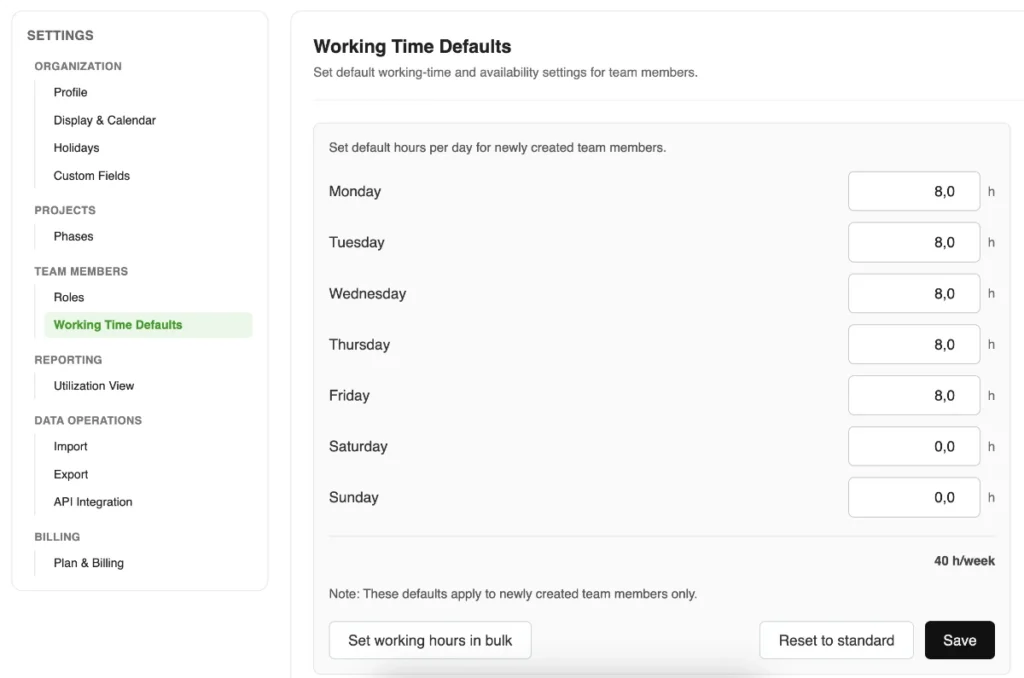
You can set working time defaults for your team via the Settings panel:
If you want to set working hours for multiple team members at once, click Set Working Hours in Bulk.
Use the import wizard in the settings panel to upload team members from a spreadsheet.
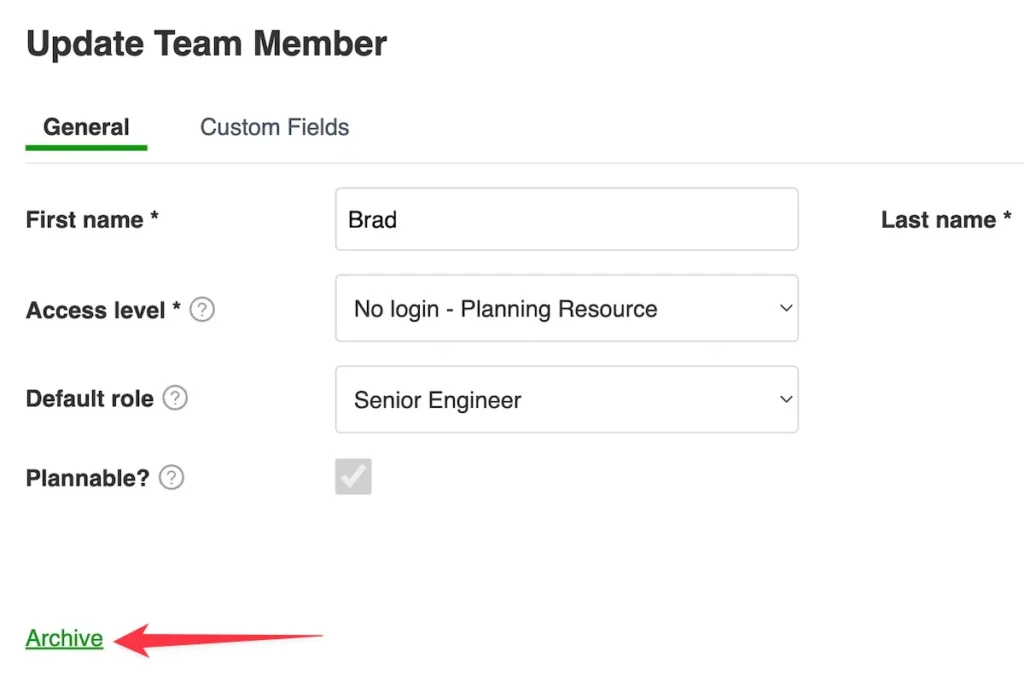
Team members who have left can be archived. Their planning data is retained, but they no longer appear in planning views.
Click on the Archive link in the team member details: