
This guide explains how to plan work in Caperity.
Caperity provides two main views for planning:
- Project View and Team View.
Both views work with the same data but present it from different perspectives.
Project View
In Project View, planning is organized by project. Each project is shown with the team members assigned to it. You enter hours per person over time.

Team View
In Team View, planning is organized by team member. Each person is shown with the projects they are working on. This view helps you manage workload and avoid overallocation.
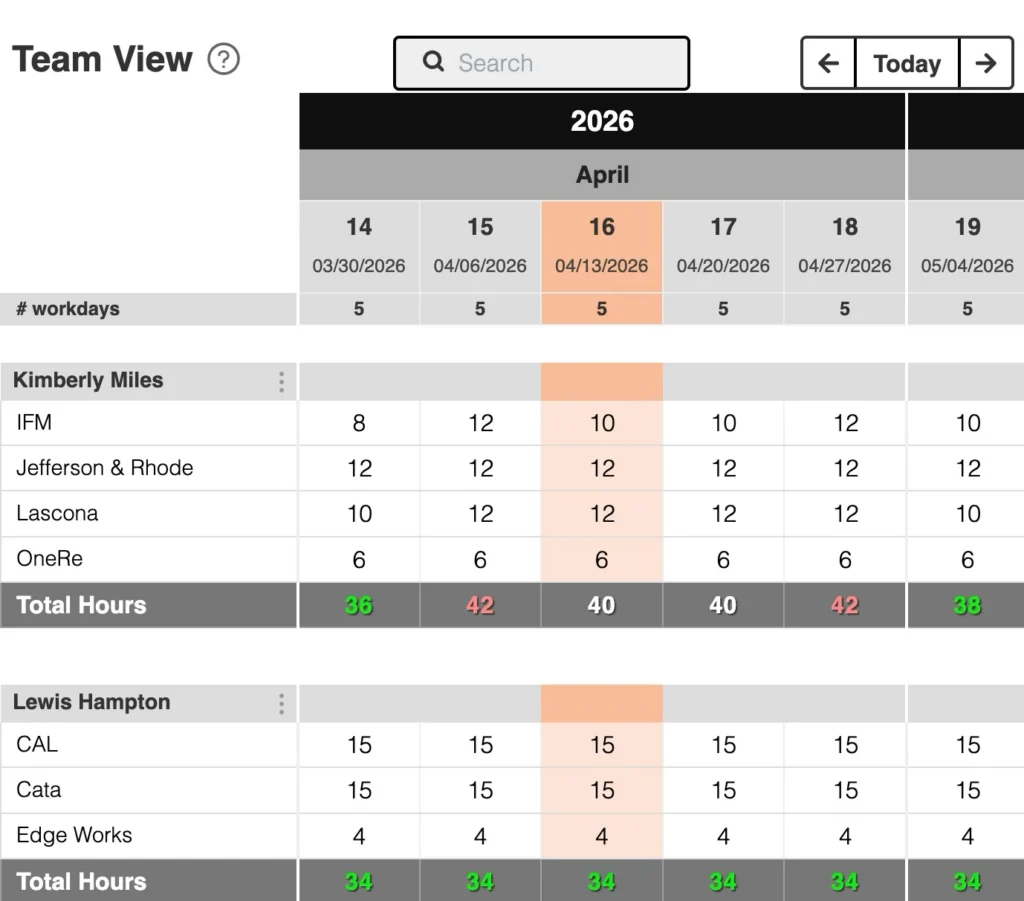
Caperity compares allocated hours with a person’s available capacity for each time period.
Color coding shows the result:
- Green: capacity available
- Red: overallocated
- White: planned hours equal capacity
Capacity is calculated based on individual working hours and scheduled time off.
Both Team View and Project View are connected. Any changes you make in one view are immediately reflected in the other.
Filling a Time Range
You can also fill a time range with a fixed number of hours using Range Fill. This is useful when planning allocations over a longer period.