You can log vacations, maternal leave, and other absences directly in Caperity, and the tool automatically adjusts individual availability.
This ensures you’re always looking at real capacity.
Logging Time Off
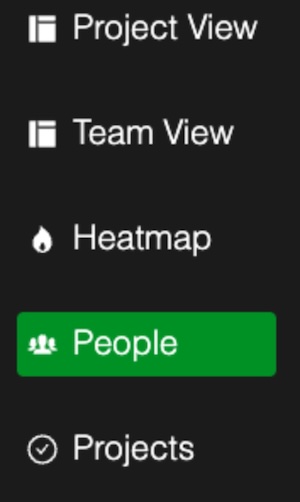
To log absences, go to the People page.
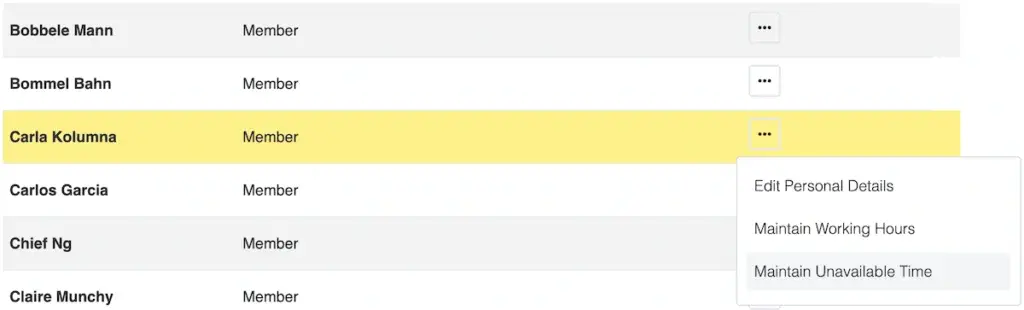
Select the team member you want to log leave for, then click the action button (the dot) next to their name and choose Maintain Unavailable Time.
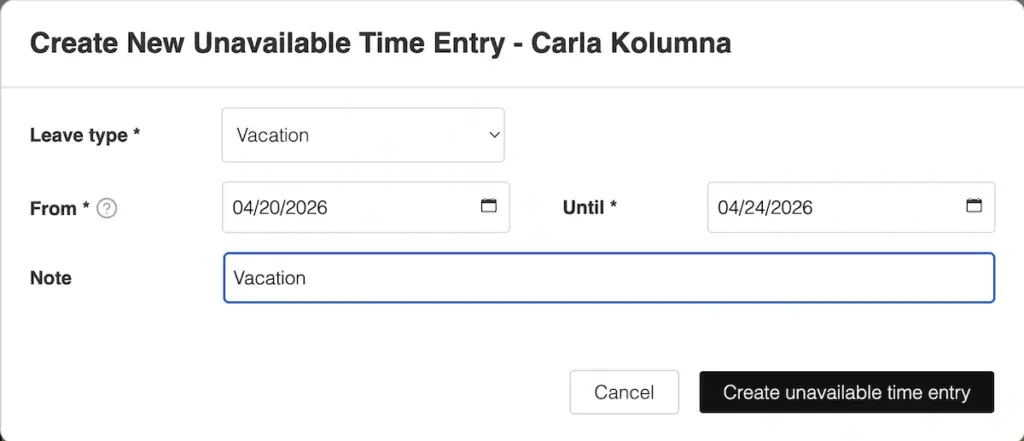
In the dialog that opens, you can log a new entry. Select an absence reason (for example, Vacation or Sick Leave), specify the start date and end date, and add a note if you want to provide more context. When done, click Create unavailable time entry.
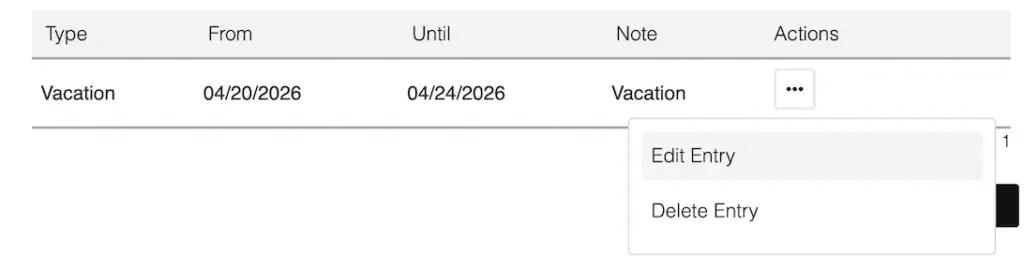
You can always edit or delete an existing entry via the actions menu:
How Absences Appear in the Planning Views
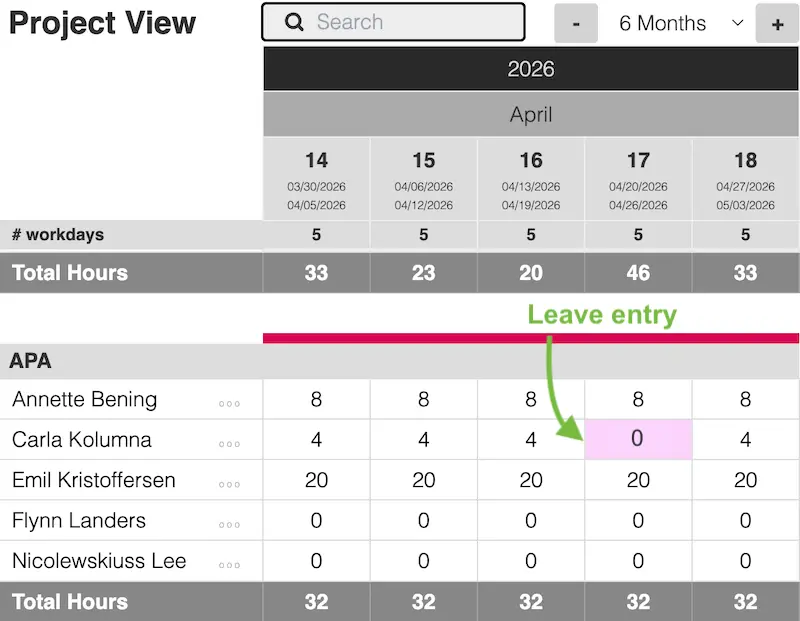
Leave entries are visible in the planning views. In both the Project View and the Team View, the respective days or weeks that include leave are highlighted in color. This applies to both the daily and the weekly calendars.
When you’re planning or filling hours, you can immediately see when someone is unavailable. Caperity also automatically skips those periods when using features like Range Fill, helping you keep your data accurate without extra manual checks.
Daily Availability Snapshot
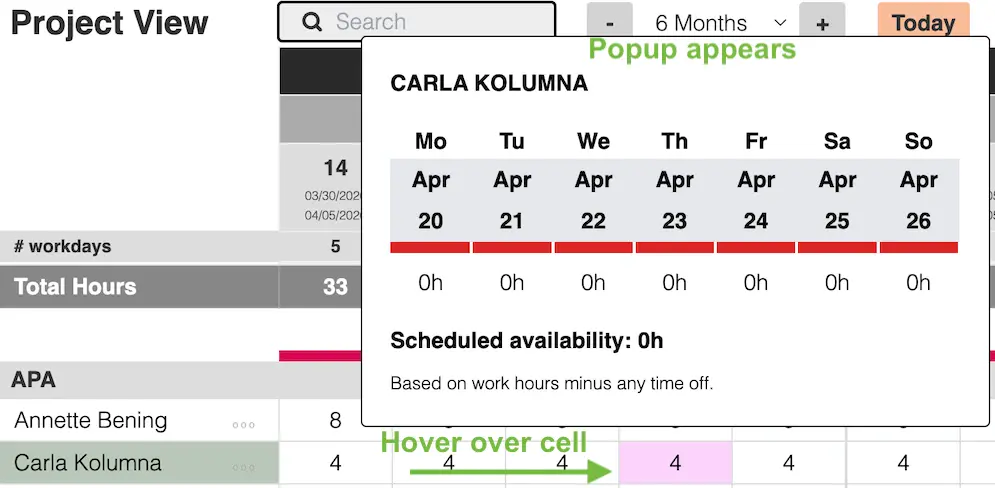
If you’re using the weekly calendar, you can hover over a particular cell and see a detailed breakdown of that person’s scheduled hours for each day of the selected week, Monday through Sunday.
The view reflects their maximum possible availability based on their work schedule, adjusted for any public holidays and time off.