This guide explains how to set up project roles in Caperity.
What are Project Roles?
Project roles define what a person does on a project.
For example, one person might be the project manager, while another might be a designer. Assigning roles helps everyone understand who’s responsible for what.
Setting up Roles
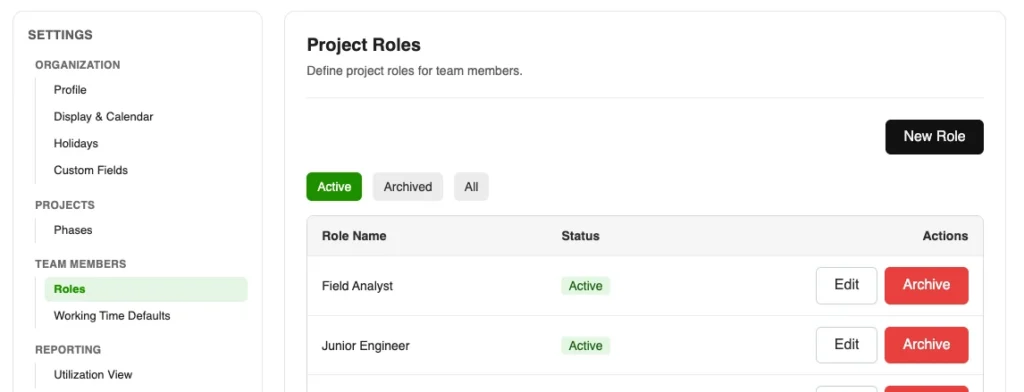
Roles can be defined in settings via Team Members > Roles:
You can enter a roleshort code that can be used for display in reports or dense tables.
Assigning Default Roles
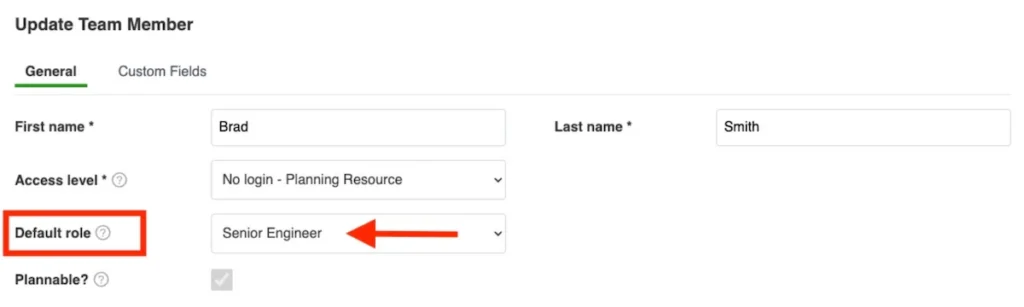
Each team member can be assigned a default role. This role is used when assigning a person to a project, but you can still set individual roles on a project level.
This reflects reality, where people often wear different hats, depending on the project. In one project they may be an engineer, and in another one a project manager.
Caperity allows you to set roles flexibly per project.
Assigning Roles on Project Level
Whenever you assign a person to a project using the staffing panel, you can choose the appropriate role from the dropdown menu:
Make sure to hit Save whenever you make changes to project staffing.
Displaying Project Roles in Project View
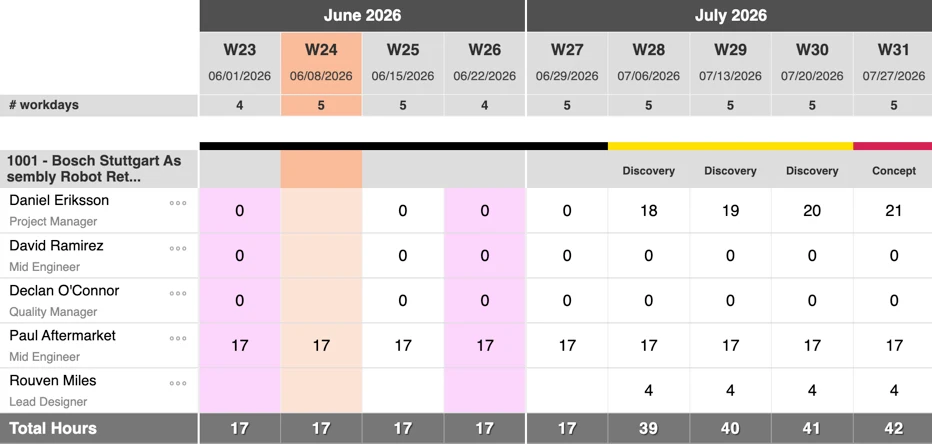
Team member project roles can be displayed in the Project View:
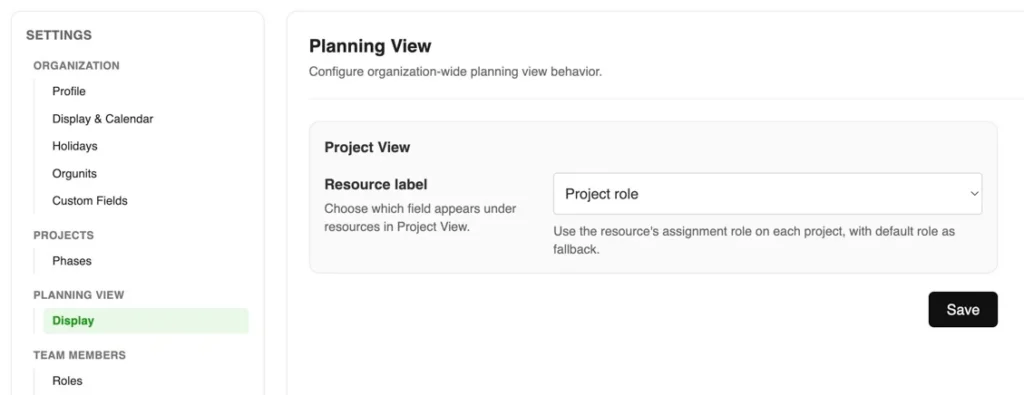
To display project roles in Project View, go to Settings > Planning View > Display and select Project role from the dropdown and press Save: