Customizing the Project View: Show only what you care about
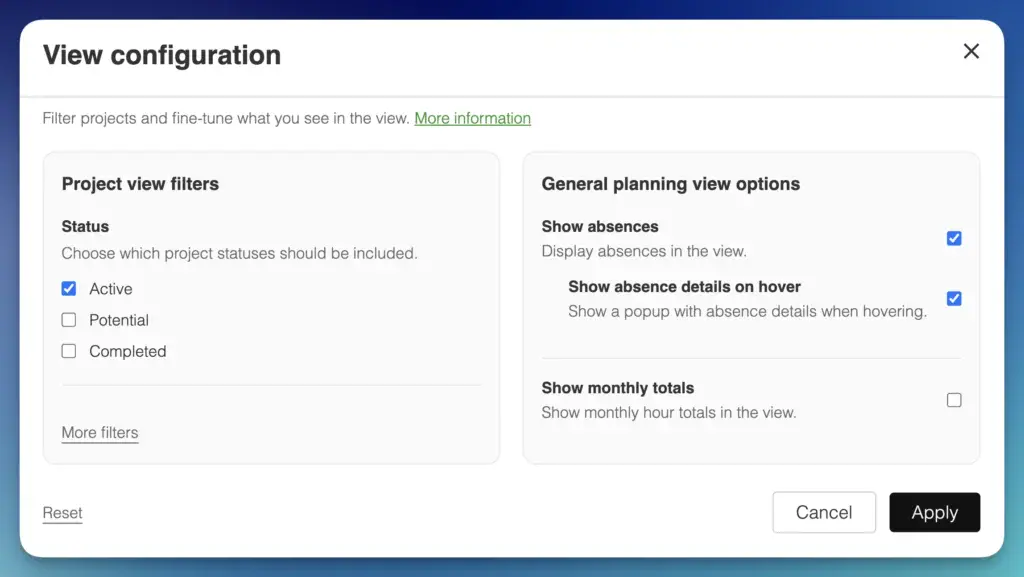
The View configuration dialog lets you control what is shown in the Project View.
In particular, it lets you control:
Which projects are shown in the overview (filter)
What extra information is shown in the view (display options)
Project status filters
Use the Status checkboxes to decide which projects should appear in the view.
Active: Shows projects that are currently active.
Potential: Shows projects that are not confirmed yet (pipeline).
Completed: Shows finished projects.
Tip: You can select multiple statuses.
More filters
These are optional filters for more specific use cases.
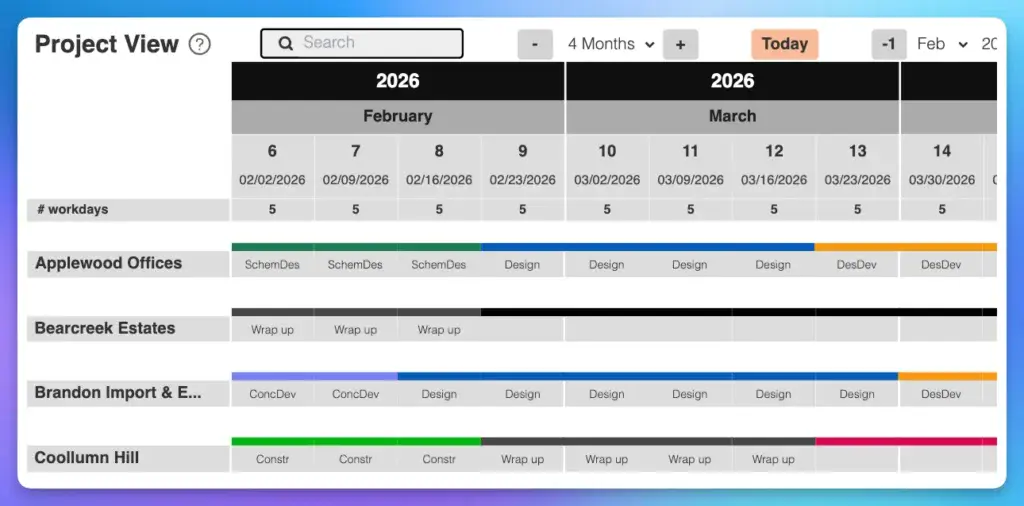
Show projects only: Hides people rows and shows only the project “header” rows. This is useful when you’re using project phases and want a compact, high-level view:
Show projects only: This offers a high-level view of all projects, including phases.
Tip: Click on the project name to expand a project and show team members and allocations:
Overlays
Overlays are “layers” shown on top of your planning data.
Show absences: Displays absences in the view (e.g. vacation or time off).
Show absence details on hover: When enabled, hovering an absence shows a small popup with details.