
We need to ensure that no team member is assigned more hours than their capacity allows.
In practice, overallocation is hard to track—especially when people are working across multiple projects.
Caperity helps you by automatically detecting overloads.
How Overload Alerting Works
Whenever you update your planning, Caperity checks whether the changes result in an overallocation for the affected team member and time period.
These checks run automatically with a short delay of up to one minute.
If an update results in an overallocation, the affected team member is flagged in Project View.
Overload Alerts in Project View
If a person is overallocated, a red icon (•) appears next to their name:
The next step is to resolve the overallocation, which we cover next.
Resolving Overallocation
Cick on the team member that has been flagged.

This opens a dialog showing the person’s workload for the months with detected overload.
Now you adjust the team member’s hours until the overallocation has been resolved.
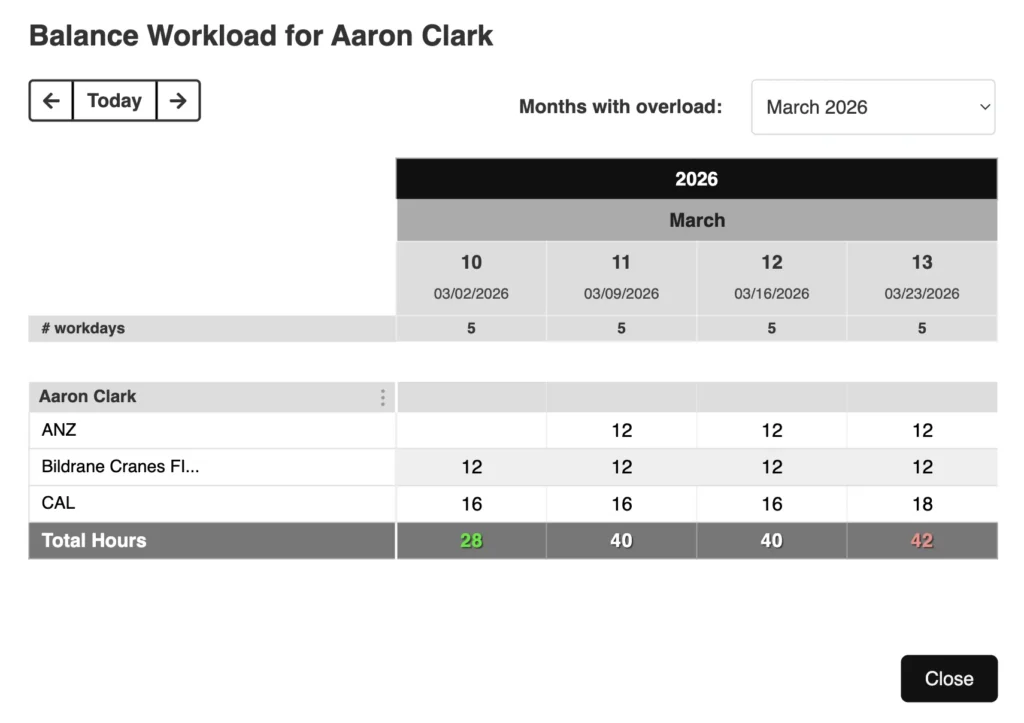
Once all overloads have been resolved, the alert disappears after a few seconds.
The advantage of this method is that you don’t have to review workload individually by switching into Team View. You can spot overload and correct it directly in Project View.