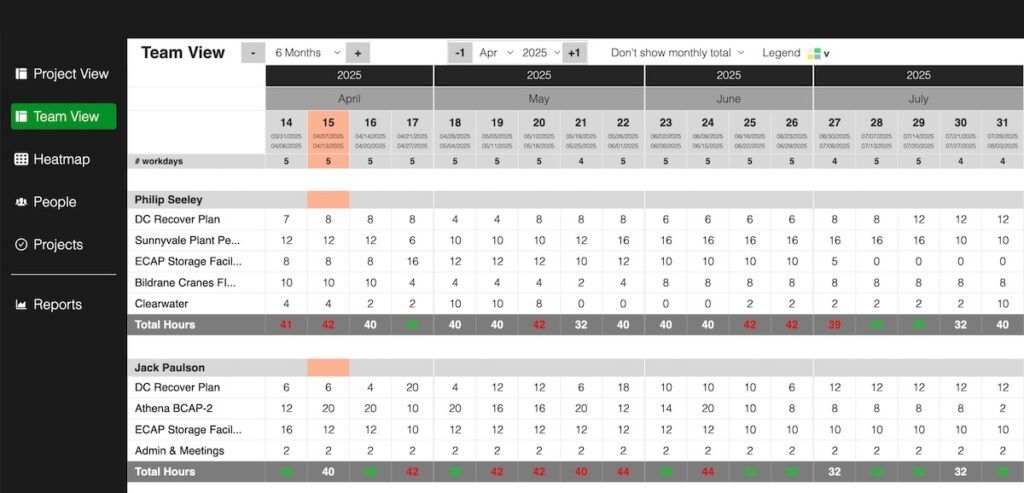
Caperity takes into account several factors to determine team member availability.
The goal is to provide an accurate picture of how much time each person has to work on projects and other activities.
Here’s what Caperity takes into account:
- Individual working schedules
- Holidays
- Logged time off
- Scheduled hours
Individual working schedules
When you add a new team member, Caperity automatically sets their maximum capacity to 40 hours per week.
You can set custom working hours for each team member. This allows Caperity to accurately reflect availability for part-time staff.
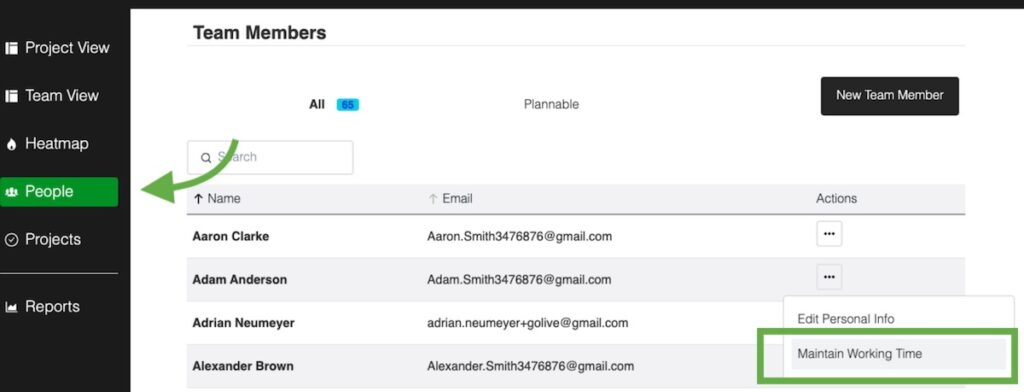
In the following dialog, you can view or modify the team member’s working hours:
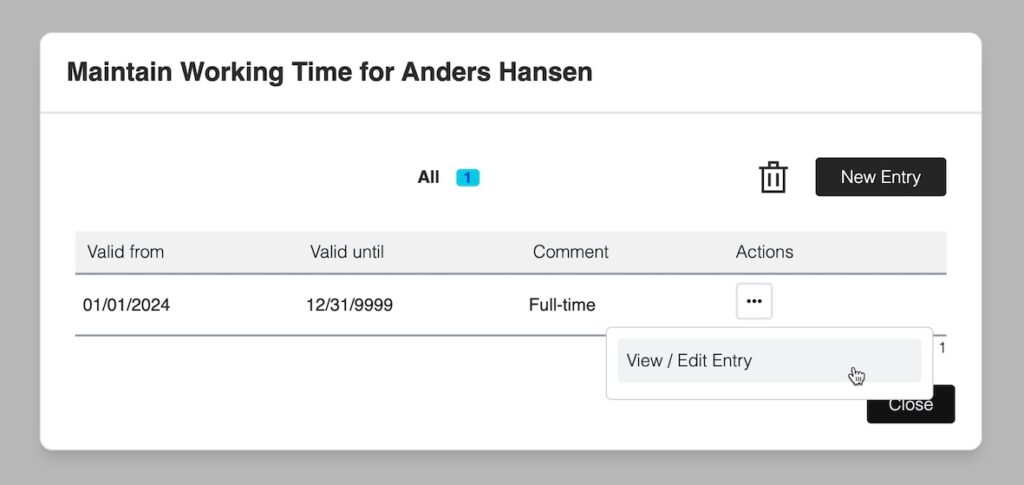
You can also add a new schedule by clicking on New Entry.
Note that working hours are always tied to a specific time period, defined by a “valid from” and “valid until” date.
Use the trash icon to delete all current entries and create a new working schedule.
Holidays
Public holidays can be configured in your organization’s settings. When enabled, Caperity automatically excludes these days from each person’s available capacity, ensuring the schedule reflects real availability.
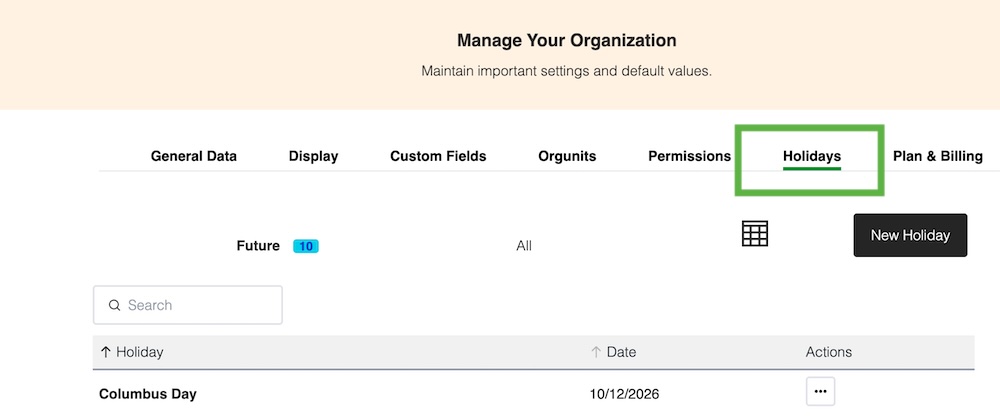
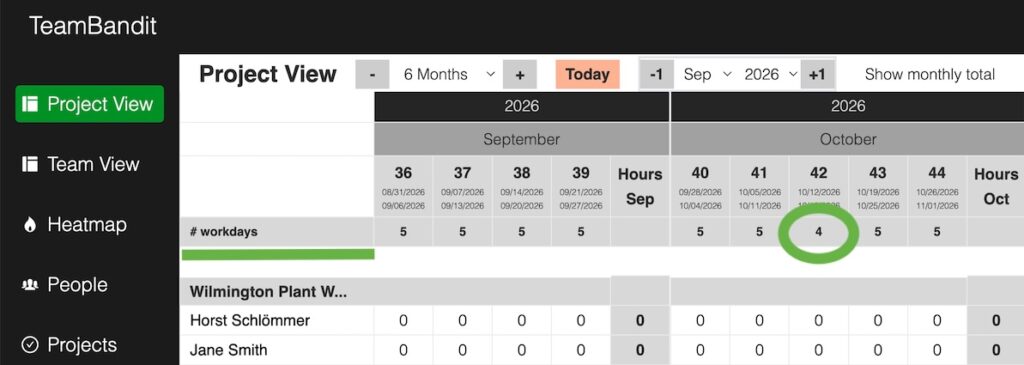
If a holiday falls within a given week, the number of working days shown in both the Project View and Team View will automatically adjust.
For example, Columbus Day falls on Monday, October 12, 2026. As a result, the working week is reduced to four days.
Logged time off
Caperity allows you to log time off for your team members. Their availability will be adjusted based on the recorded absences.
Scheduled hours
Once available capacity is determined, Caperity compares it with the scheduled hours for each person.
By going to the Team View, you can now easily check the individual workload for each team member and spot overloads or free capacity.