You can easily upload multiple projects from an Excel file.
Note: This feature requires Administrator privileges.
Here are the steps:
Step 1: Navigate to the Projects page
Choose Projects from the left menu:
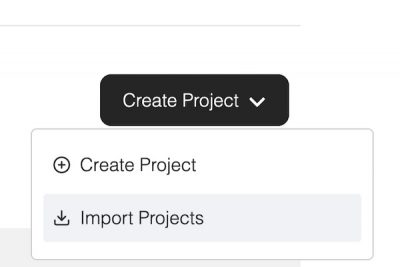
Click the Create Project button and choose Import Projects:
Step 2: Download the import template
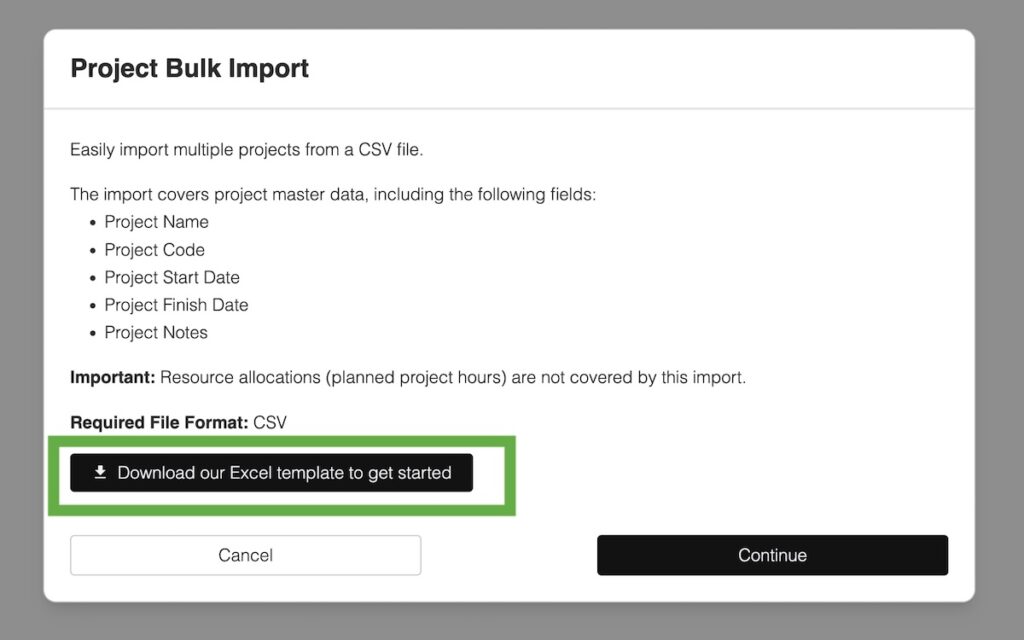
Click on the download button to download the import template to your computer. Open the file in Excel and select the Projects for import tab.
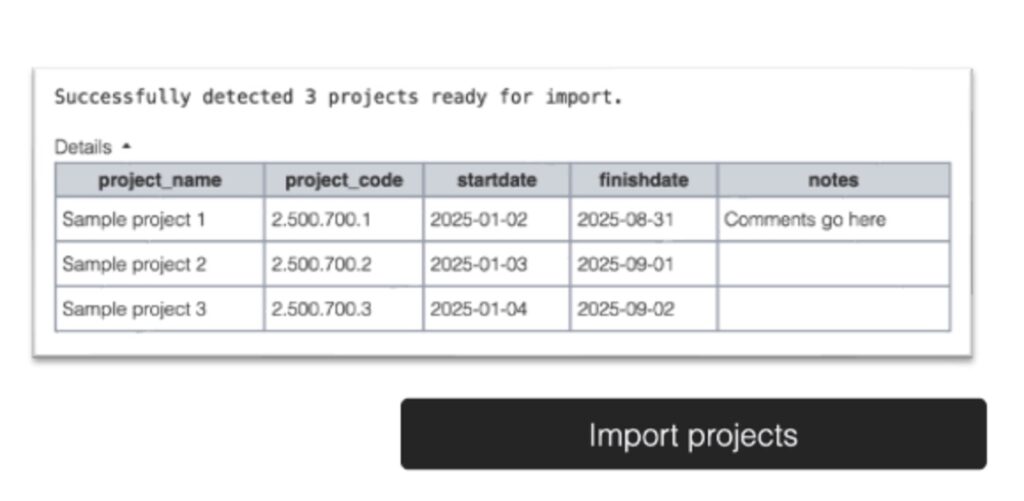
Add your projects to the sheet using the format shown below. You need to add at least a project name; the other fields are optional. When entering project start or finish dates, make sure to use the ISO format (YYYY-MM-DD).
Press the Continue button.
Save the current tab as a CSV file by choosing File -> Save As in Excel
Press Continue to proceed.
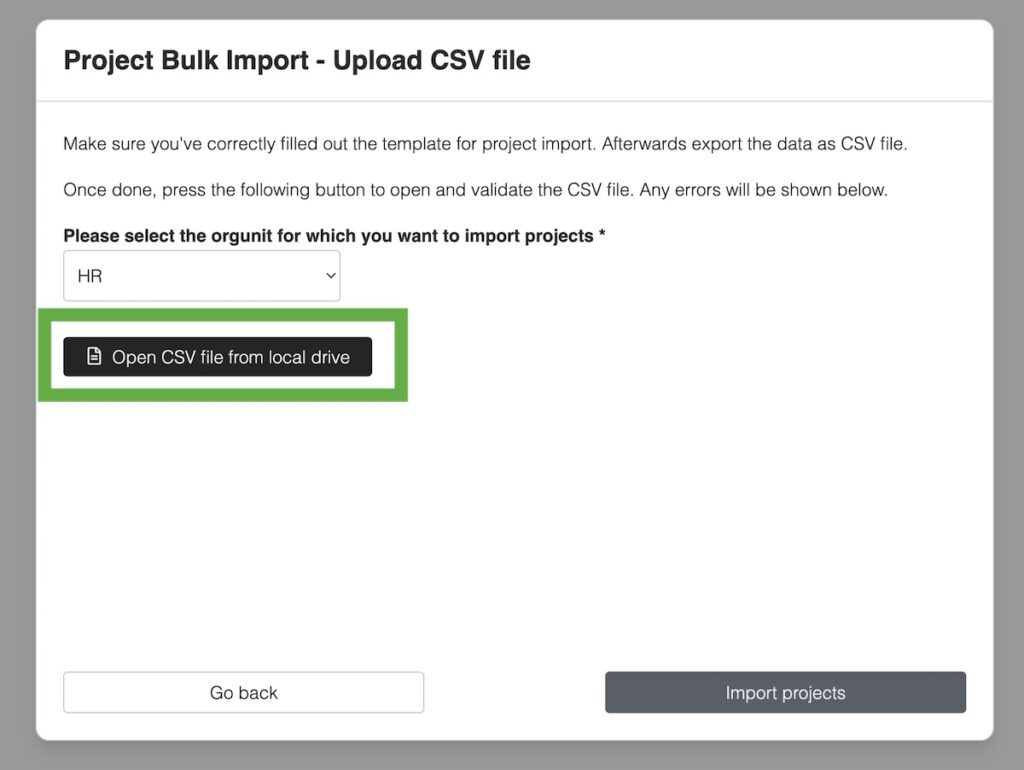
If you have set up orgunits, you will be asked to choose which orgunit the projects belong to.
Click Open CSV file from local drive and select your import file. Make sure it is stored as CSV (comma separated values), not as XSLX file.
If your import file was correct, you should see a table with the projects to be imported:
Click Import projects. This will upload your projects to TeamBandit.
Your new projects will appear on the Projects page.