Welcome to Caperity

Thanks for signing up!

This quick guide helps you get started with Caperity. 

Video: First steps in Caperity

Before you start

Make sure you’ve completed the Caperity setup. During setup, you’ll enter your organization name, choose your workweek format, select your planning layout and configure a few other basics.

Step 1: Add projects

Choose Projects from the left navigation. Then click on Create Project to create a project:

Creating a project in Caperity

Step 2: Add team members​

Now go to People, and add your team members:

Adding a new team member in Caperity is very easy.

If you have a big team, use the import to upload team members from a CSV.

Step 3: Assign people to projects

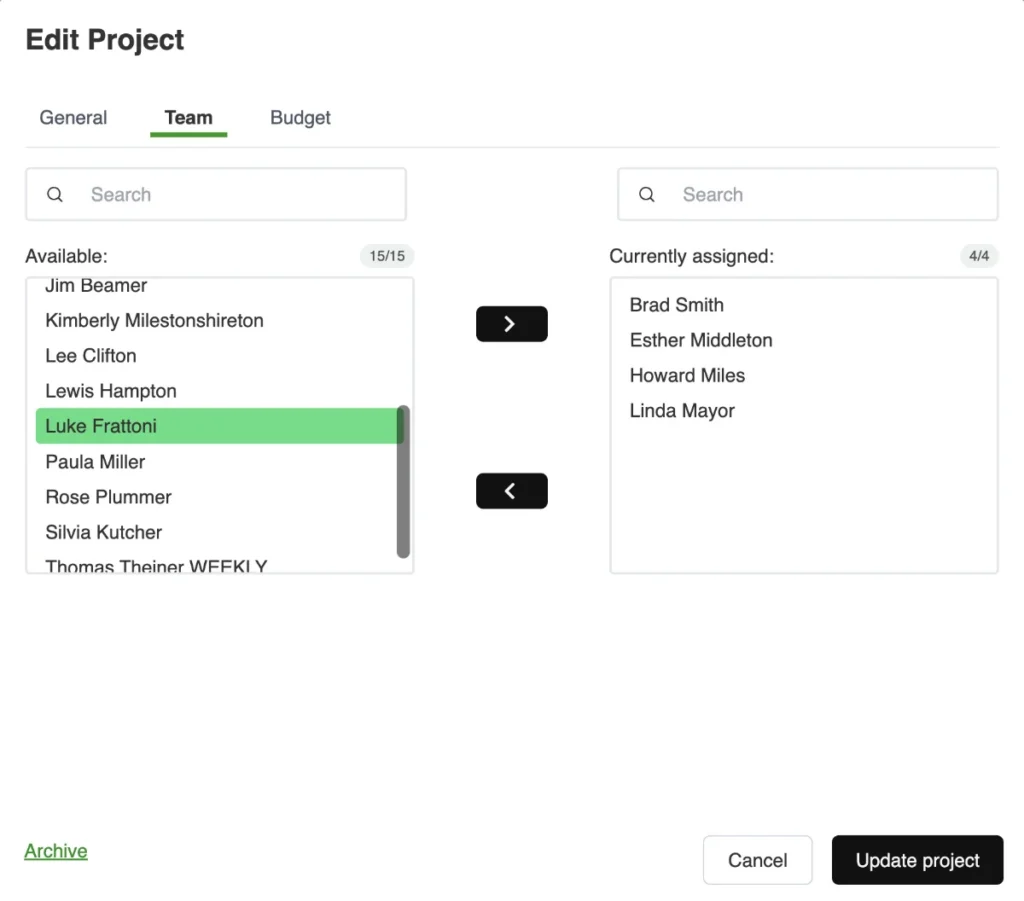
  • Before you can enter allocations for people, you need to assign people to projects.
  • Go to the Projects page and select the action button for the project you want to add people to. Click Assign People.

Step 4: Add your local holidays

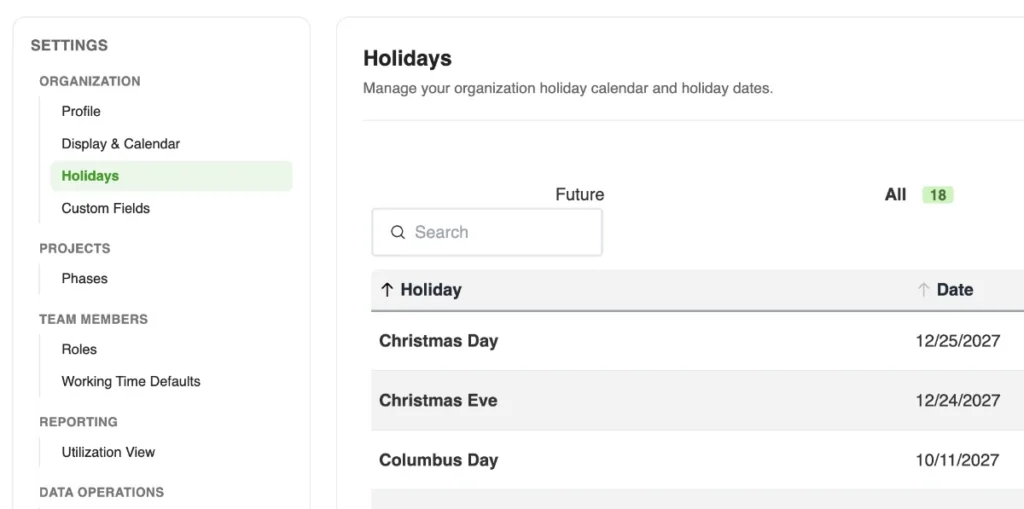
Caperity will account for local holidays when determining the available capacity of team members. You can maintain your local holidays in the organization settings menu, reachable from the account menu.

Understanding the different views

1. The Main Navigation

After login, the main navigation bar will appear on the left side. You can access all core features from there:

2. The Project View

The Project Views shows team members by project, along with their allocated hours for each week.

Project view

If you would like to visualize the project timeframe in the Project View, go the Projects menu and maintain project start and finish dates for your projects. Now, a colored bar will appear in the project header row, indicating the project duration.

3. The Team View

Go to Team View to see resource allocation by team member, along with the projects each person is assigned to and their planned hours per project.

Report showing planned hours by team member

As you can see in the image above, the totals may take different colors (red, white, green), depending on whether the person has capacity left, is 100% booked or if their their capacity has been exceeded.

Read also: How Caperity determines available capacity

The Heatmap

The heatmap shows the available capacity of each team member. The cell values represent the number of hours the person has available, after deducting their scheduled project hours from their total working hours. 

Red and amber cells show weeks (or days) where a person is fully booked or overbooked. Yellow and green cells indicate that some capacity is still available.

The integrated workload heatmap shows individual workload per team member, considering the assigned hours.

For team members to appear on the heatmap, they must have flag “plannable” be set in the team member settings. Team members with the “plannable” flag not set will not appear on the heatmap.

Timeline Header

Both the Project View and Team View use the same calendar format, with buttons to easily adjust the timeframe. You can also show or hide monthly totals.

The weekly calendar shows the following details:

Note: The current version of Caperity shows ISO calendar weeks only. We will soon be able to show US calendar weeks.

Caperity calculates the number of working days per week based on the holidays maintained in your organization settings menu.

Scheduling hours

To enter time allocations for your projects, go to the Project View. The assigned people should now appear underneath each project:

Enter the hours for each team member by clicking on the respective cell. Use the Tab key to jump to the next week or day. Entries are automatically saved!

Tip 1: If you accidentally change the wrong cell, just press the ESC key to undo it. This restores the original value — as long as you haven’t moved to another cell yet.

Tip 2: Caperity keeps track of your last four updates. Cells with recent changes are highlighted with a colored border — just hover over a cell to see its previous value.

Getting help

Do you need help? Do you have questions? Just fill out the contact form and we’ll get back to you quickly.

Table of Contents