
You can easily upload project hours in bulk using a CSV file.
This is helpful for many purposes:
- Importing hours from another tool
- Adding planned hours you’ve prepared in a spreadsheet
- Updating or correcting hours in larger batches
How it works
- Fill out the import template (see below)
- Make sure projects and team members are set up in Caperity.
- Upload the hours inside Caperity (see steps below)
- Caperity will automatically do the mapping of projects to team members, based on the data provided.
- You’ll be notified when the import is complete. You can then review the uploaded hours in Project View.
Before you start
- Caperity supports two planning layouts: Daily and Weekly. Your organization uses one layout, and your import file must match it.
- If you’re on the Daily layout, you must include hours per day
- If you’re on the weekly layout, you must include hours per week
Caperity will reject your import file it it does not match your org layout.
Step 1: Download the import template
Get the import template here.
The template guarantees the correct column structure for your layout.
Fill out the template and save it as a CSV file (in Excel: Save As > CSV)
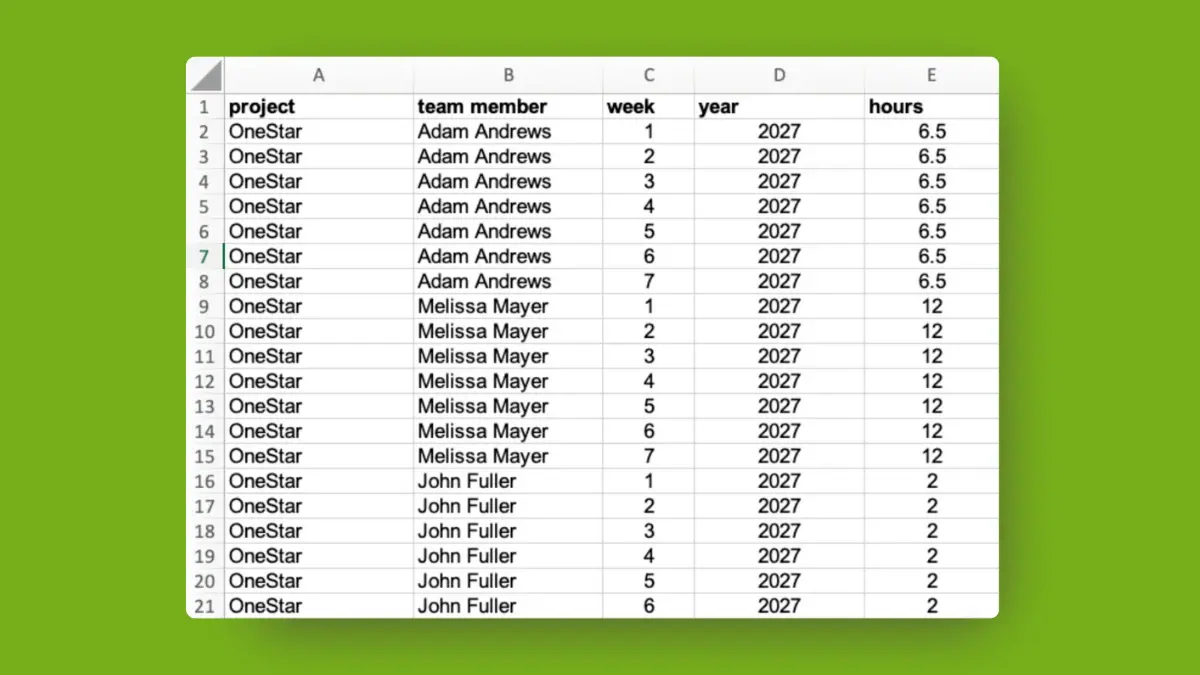
Upload example for weekly hours:
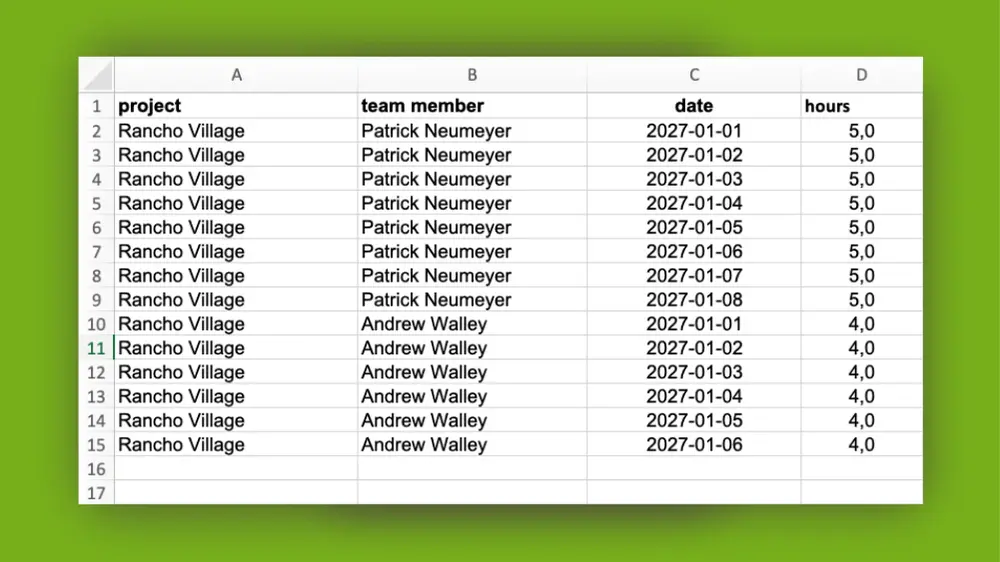
Upload example for daily hours:
Step 2: Check your upload file
Make sure every project and team member listed in your CSV already exists in Caperity. If a project or team member cannot be found in the system, the import file will be rejected.
Step 3: Import your hours file
Your import CSV file is ready?
Let’s do the import.
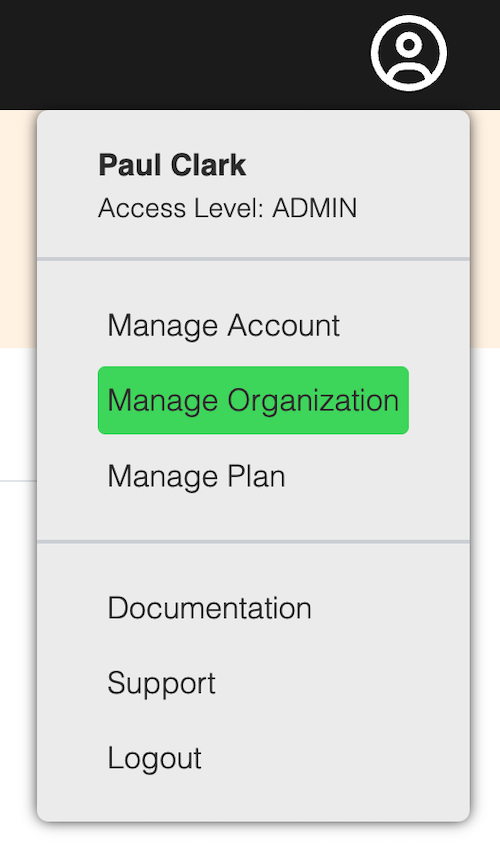
Go to the account menu on the upper right and choose Manage Organization.
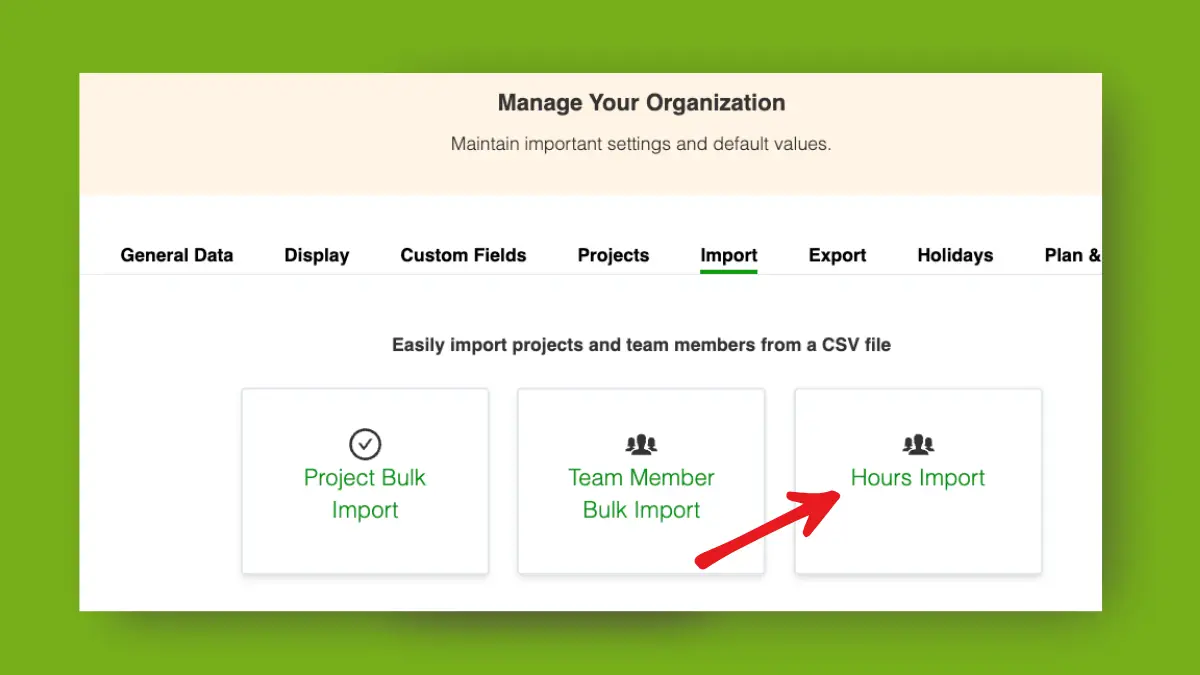
Go to Import and click on Hours Import to launch the import dialog:
From there, follow the steps of the import dialog.
Caperity will run a quick validation to check the structure and content.
If the import is successful, you’ll receive a confirmation email.
After that, you can review the imported hours in the Project View.