In practice, we often need to allocate the same amount of work across a certain timeframe.
The Range Fill feature lets you apply those values in one step instead of maintaining hours week by week.
What is Range Fill?
Range Fill lets you allocate planning hours across a selected timeframe in one guided flow.
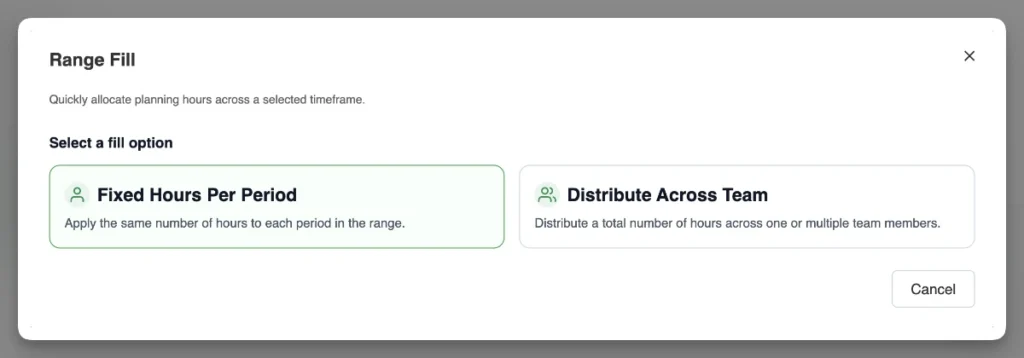
Range Fill supports two fill modes:
Fixed Hours per Period
Distributing a Total Across Team Members
Fixed Hours per Period:
Fill a fixed hours value across a time frame — for a single team member.
Distribute Across Team:
Spread a total amount of hours across one or multiple team members.
Distribution rates can be defined per person (using %).
Distributed values are added to existing planning hours for the selected project and range.
This mode is useful for spreading remaining project hours across the team over the project’s remaining duration.
Using Range Fill
Go to Project View.
Go to the project and team member you want to allocate hours for.
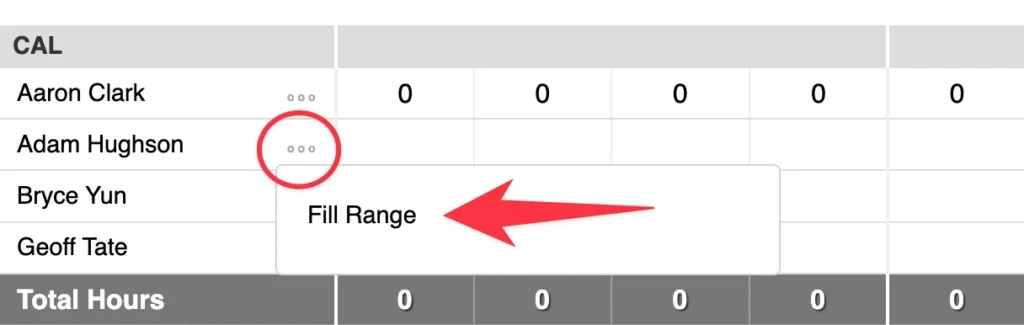
Click on the three dots next to the person’s name, and choose Fill Range:
Allocating Fixed Hours Across a Period
This section covers the Fixed Hours fill mode.
Use this mode allocates a fixed number of hours for a specific team member across a timeframe.
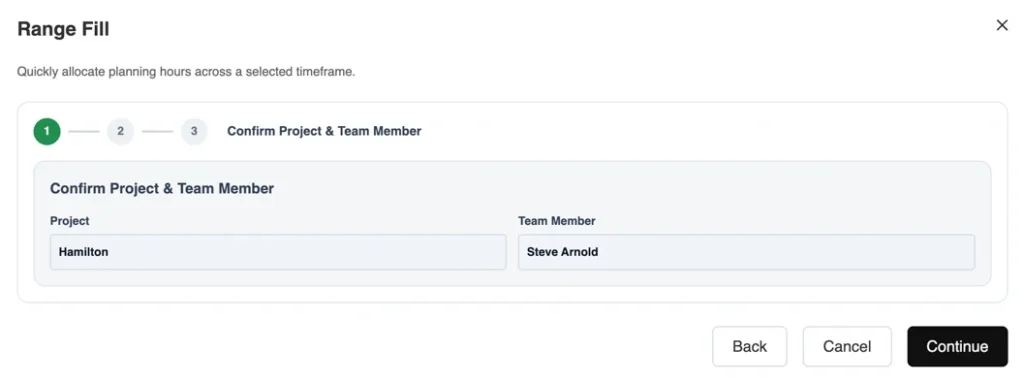
Confirm the project and team member:
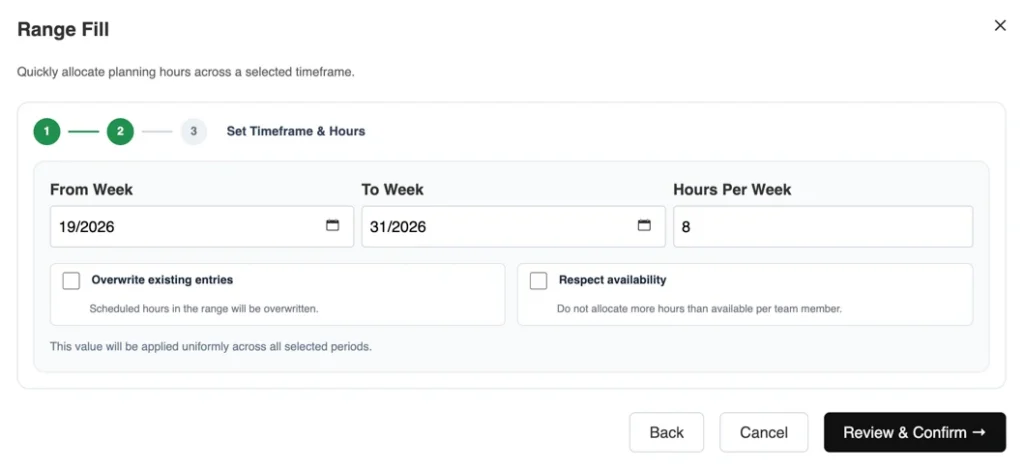
Enter the hours and timeframe to allocate. Hours will be spread across the selected period:
Review the planned changes and click Apply Changes.
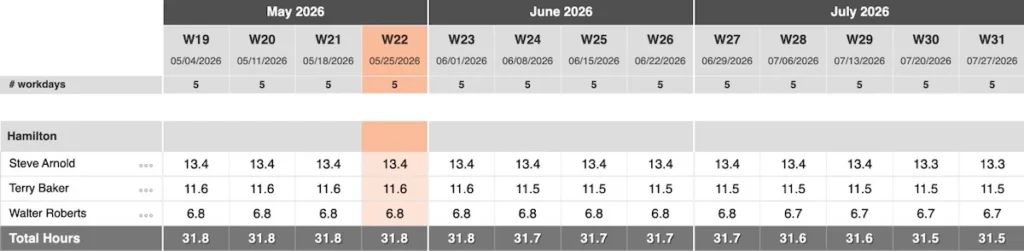
After Range Fill is applied, the updated hours appear in the planning view:
In the Fixed Amount mode, you can control how the fill is applied:
Overwrite: Replaces existing hours in the selected range.
Respect availability: Skips periods where the team member is unavailable (due to holidays or other reasons).
Distributing a Total Amount Across Team Members
This section covers the Team Distribution fill mode.
This mode lets you distribute a total amount of hours across your team, using per-person distribution rates.
Distributed amounts are added to existing planning hours for the selected project and range.
Confirm the project and total amount (in hours):
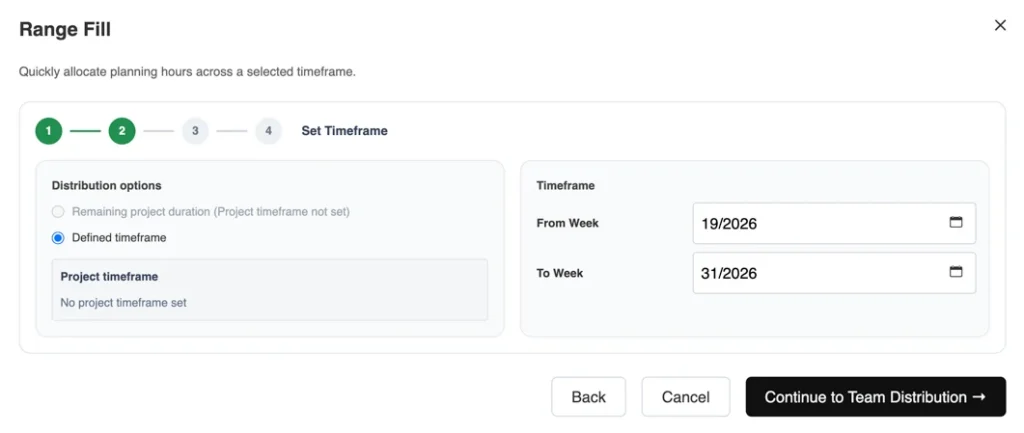
Enter the timeframe that the amount should be distributed across:
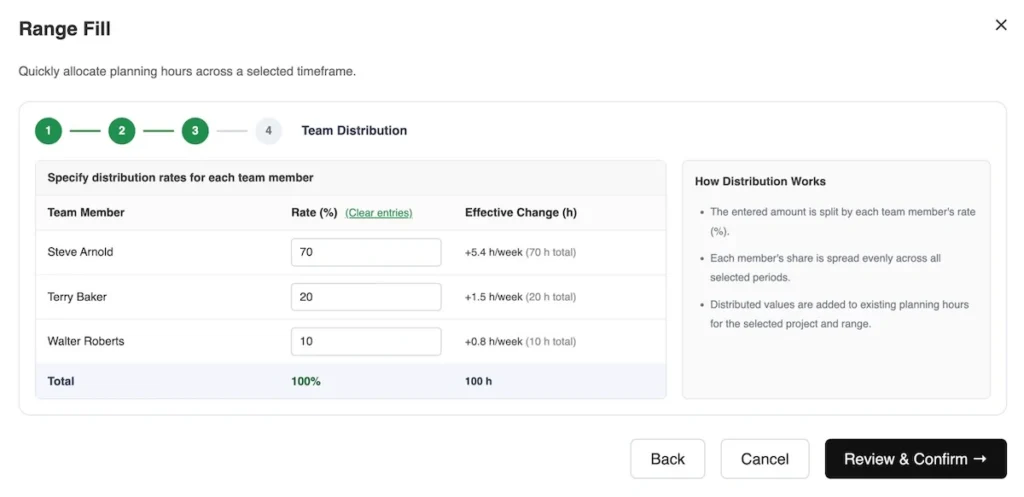
In the distribution table, specify how the total amount should be spread across team members. Entered rates must sum up to 100%:
Reviewing the distribution result
Distributed amounts are added to existing planning hours for the selected project and range.
Rounding is applied in 0.1-hour units, and any remainder is distributed automatically so the total still matches the entered amount.
Example:
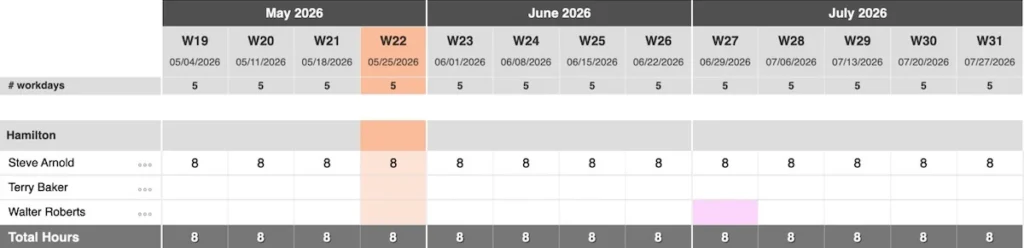
Initial hours — before distribution:
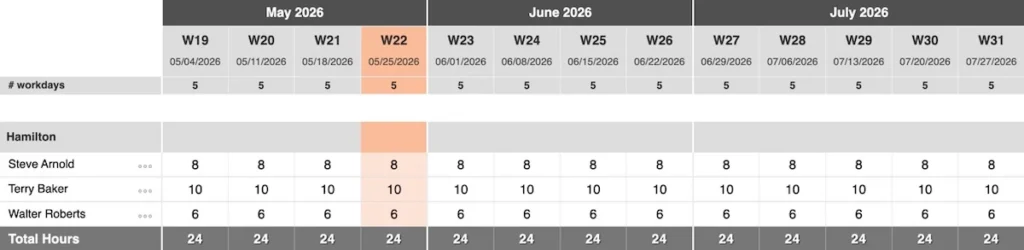
Updated hours — with distribution applied:
In this example, a total of 100 h was distributed across 3 team members over a 13-week range, using individual rates (70%, 20%, 10%) for the team members in the listed order.