Are you overseeing a team handling a broad range of tasks, and you need a simple way to plan your team’s time?
There are different ways to do this — from Excel to full resource management tools. But not all of them are equally easy to use or maintain.
In this article, you’ll learn how to plan your team’s capacity week by week, what a practical setup looks like, and which tools keep it simple — and which don’t.

The basic setup for weekly planning
Planning capacity week by week is a good choice. It gives you enough detail to see real workload and make decisions, while staying easy to maintain as priorities change.
The setup is simple: estimate how many hours each person spends on each project or task per week.
For example:
- Andrea works 20 hours on Project A and 15 hours on Project B.
- Jeff is assigned 30 hours to Project A.
- Melissa splits her time between Project B and internal work.
Once laid out, you can quickly compare planned allocations with each person’s available capacity — and see who has room and who is overbooked.
Building your weekly planning setup
Setting this up is simple. You just need a few core elements:
- Get capacity per person: Get each person’s actual weekly working hours (e.g. 40h, 30h, 20h). Use this as the baseline for all planning, and make sure to account for any schedule changes, such as parental leave or other adjustments.
- List all work: Capture everything your team spends time on — not just projects, but also meetings, admin and internal tasks. For BAU or meetings, exact estimates are harder. Use reasonable averages instead.
- Collect time off and holidays: Gather vacations, public holidays, sick leave, and company shutdowns. Adjust each person’s available capacity before you assign any work.
- Assign weekly hours: For each person, define how many hours they will spend on each project in a given week. Keep it at effort level — no need to break it down into tasks.
- Compare workload vs capacity: Add up total assigned hours per person and compare them to their available capacity. This shows immediately who is overloaded and who still has room.
- Review weekly: Check in regularly with team members, get their input and adjust hours based on real progress. If possible, let people update their own hours in a shared planning sheet to keep everything current.
That’s your weekly planning loop — simple, practical, and repeatable.
Tool options for weekly team planning
There are different options to handle week-by-week planning. They differ mainly in setup effort, ease of use, and how well they scale as your team or number of projects grows.
The options are:
- Excel spreadsheets
- Resource management software
- Lightweight capacity planning tools
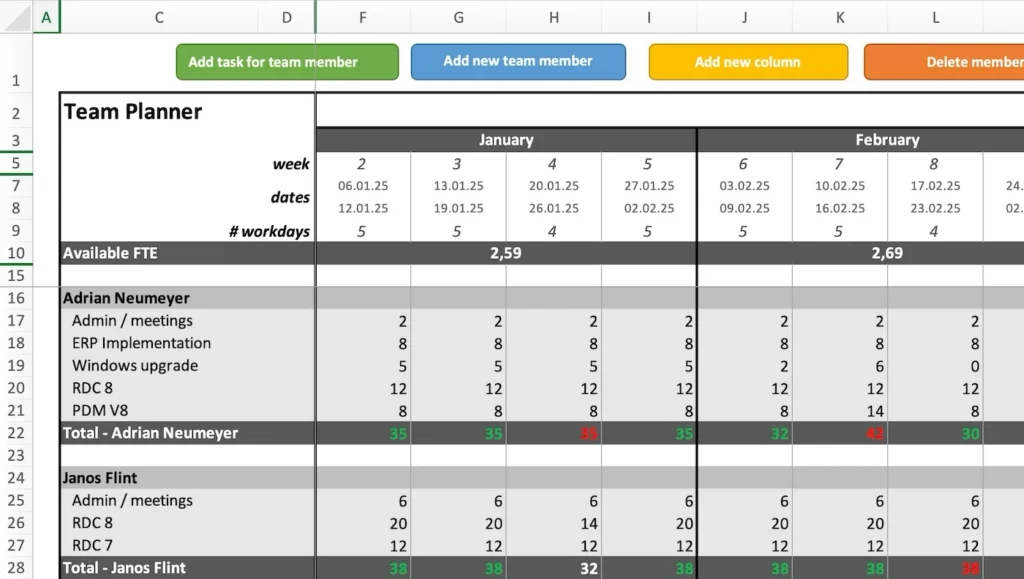
Option A: Using Excel for weekly planning
Excel gives you full control and is a great starting point, but tracking sheets have a tendency of becoming clunky and hard to maintain.
Pros of Excel:
- Easy to start
- No new tool needed
- Full flexibility for building highly customized views
- Works well for small teams (up to 5 people)
Cons of Excel:
- Building a proper sheet requires effort
- Real availability (holidays, time off) is hard to show accurately
- Shared sheets can easily break
- Excel solutions become fragile as the amount of data grows.
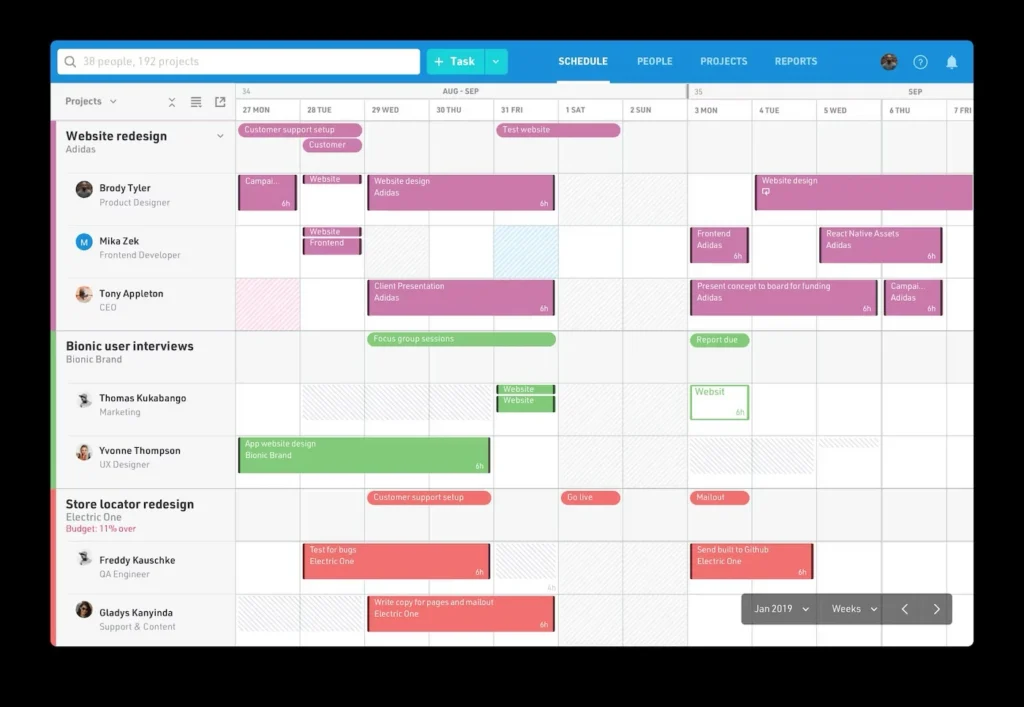
Option B: Using resource management software for weekly planning
Professional resource management software is built for scheduling people across tasks, often using timelines or calendars to plan work.
Common tools in this category include Float, Teamwork, Smartsheet and Forecast. Learn more about resource management tools in this category.
Pros of resource management software:
- Built for planning across multiple projects
- Project management features (e.g. workflows, task tracking)
- Variety of reports included
- Shared access for teams
- Good choice if you need full project and team management
Cons of resource management software:
- Often built around daily scheduling (with weekly view)
- More complex to set up
- Adjusting plans means editing timelines (moving or splitting task bars)
- Ongoing maintenance can be time-consuming
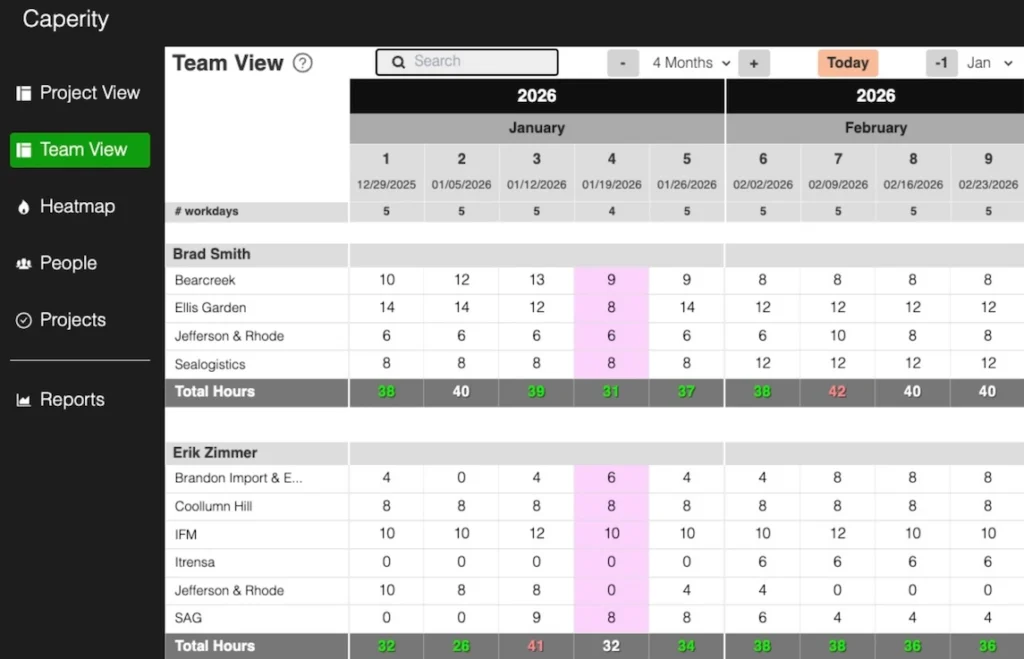
Option C: Using lightweight team capacity planners for weekly planning
Tools like Caperity provide a user-friendly alternative to more sophisticated resource planning software.
They focus on the essentials — easy weekly planning, a clear view of workload and availability per person, and basic reports to support planning decisions.
Pros of lightweight capacity planners:
- Low learning curve
- Simple planning grid for weekly planning
- Workload and availability visible at one glance
- Availability based on individual schedules
- Easy to update
Cons of lightweight capacity planners:
- Not practical for detailed task planning
- Fewer features than full project management tools
- Limited integrations with other systems
Closing thoughts
Weekly planning helps you manage workload with reasonable effort.
Excel is a good starting point, but it only works well for small teams.
If your goal is to manage project delivery and resources in one place, try tools like Float or Teamwork.
If you mainly want a simple way to plan your team’s time and see workload and availability, tools like Caperity are worth a look.
Author
-
View all postsAdrian Neumeyer has spent over a decade in project delivery, leading high-stakes strategic IT initiatives for major global engineering firms like Bosch and HILTI. He is also the Founder of Caperity, focused on giving managers a simple, practical solution for project capacity planning.