
Easily calculate available resource capacity, compare with demand and identify capacity surplus or deficit — for up to 2 years.
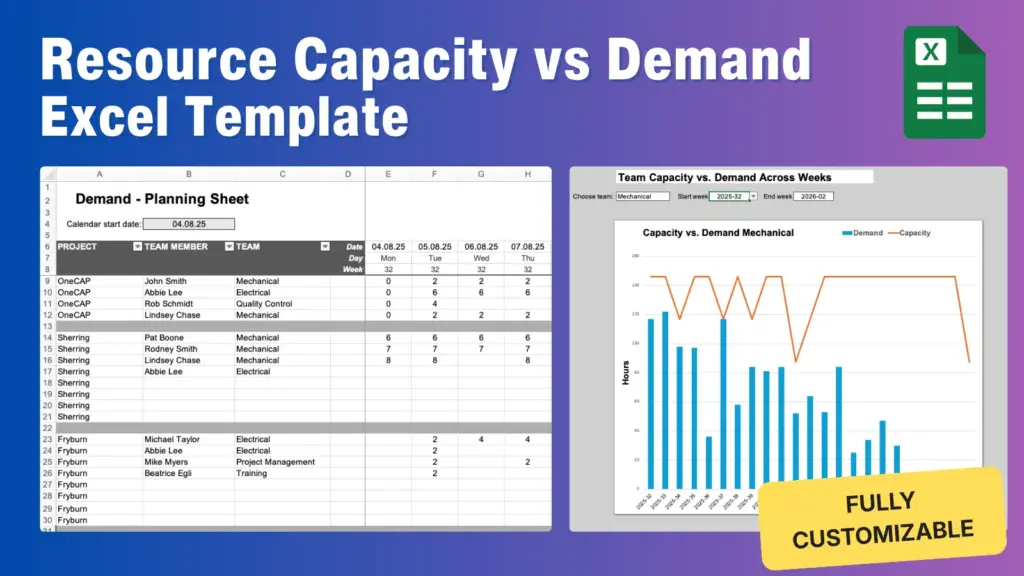
The Capacity vs. Demand Planner is an Excel tool for resource planning. It is used in fast-moving technology and engineering environments, where projects often involve multiple functions — mechanical and electrical design, sales, or field service.
These environments typically involve customer projects and bespoke equipment, where every project is different and plans change from one day to the other. They need long-term forecasting across many months, but also day-to-day planning as customers change requirements, extend timelines, or add new work. The planner helps you stay organized and in control, even when things move quickly.
What this planner includes:
- Daily layout: Plan capacity and demand day by day, for up to 2 years. This makes it useful both for shorter and longer projects spanning more than a year.
- Team-based capacity model: Add your people, assign them to a team and define their working hours per day.
- Holiday support: Runs on a Monday–Friday workweek and adjusts capacity for holidays you define up to 24 months ahead.
- Project demand scheduler: Enter planned hours per project and per person across any date range. The sheet calculates demand automatically.
- Capacity vs. demand comparison: See how much time each team has available vs. how much work is scheduled — day by day or month by month.
- Visual charts: Charts show capacity vs. demand over time and the distribution of hours by team.
How the planner works
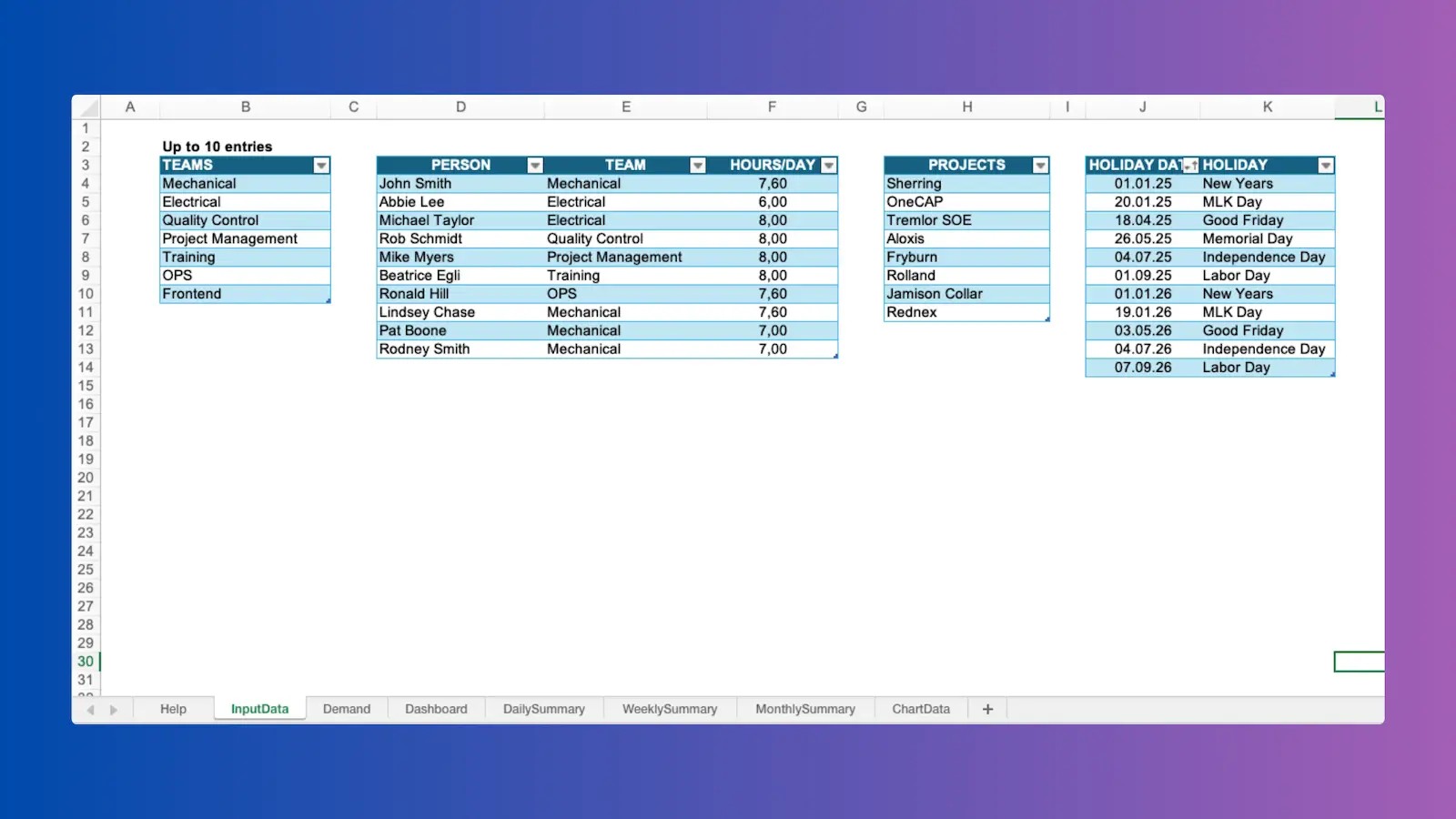
Step 1: Set up your data (tab: InputData)
This is where you define everything the planner needs to calculate capacity.
- Add your people and assign them to a team
- Enter each person’s daily working hours
- List your teams (up to 10 teams supported)
- Add your projects
- Maintain your holiday list
This step creates the base capacity model the rest of the planner uses.
Step 2: Enter demand
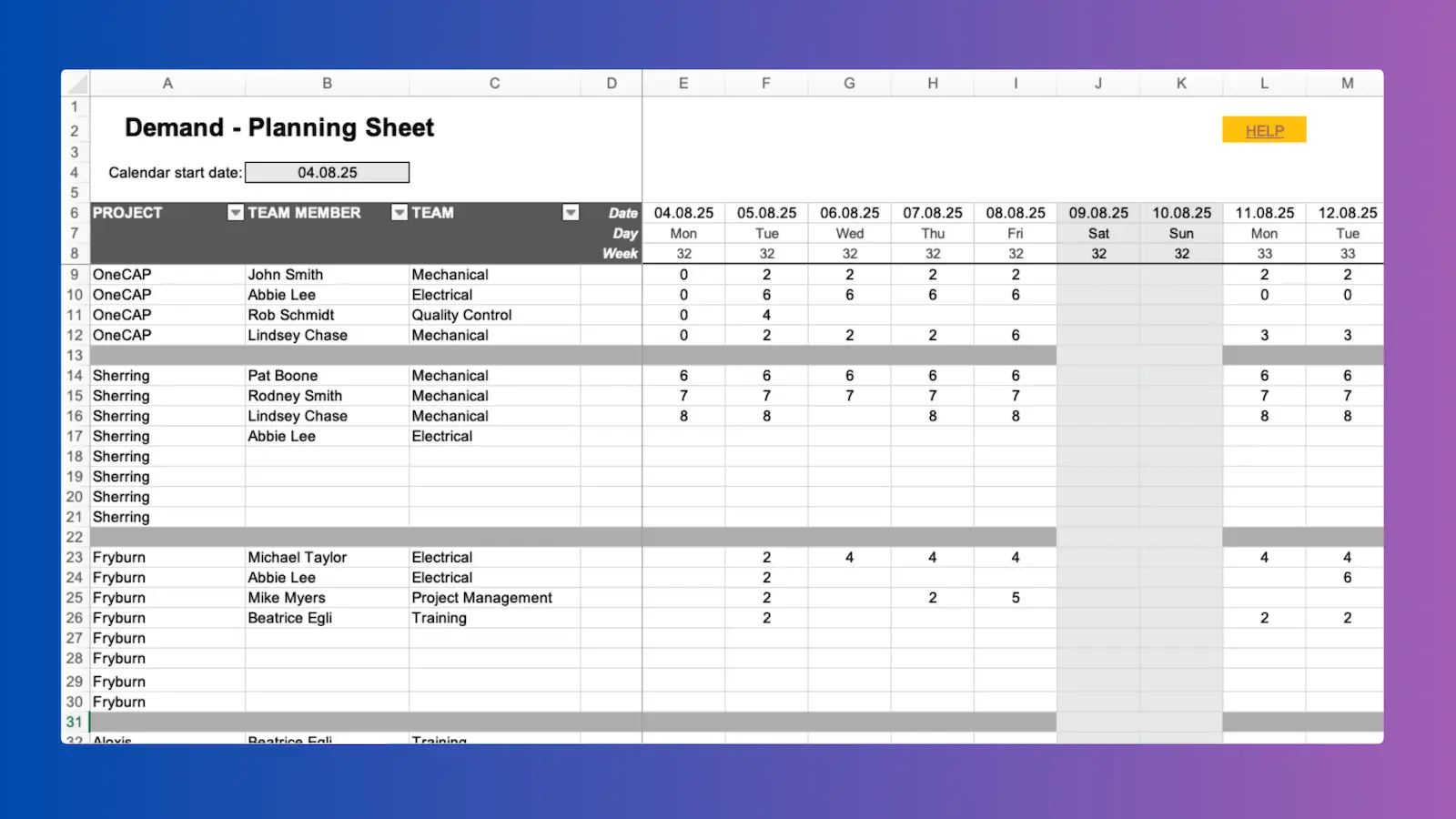
This is where you schedule project work:
- Enter the start date for the calendar.
- The daily date headers fill in automatically from that point.
- The planner supports up to 730 days (about 2 years).
- Add your project name and select the assigned team members.
- Enter planned hours (demand) per day
Step 3: Review capacity versus demand
This is where the main insights come together.
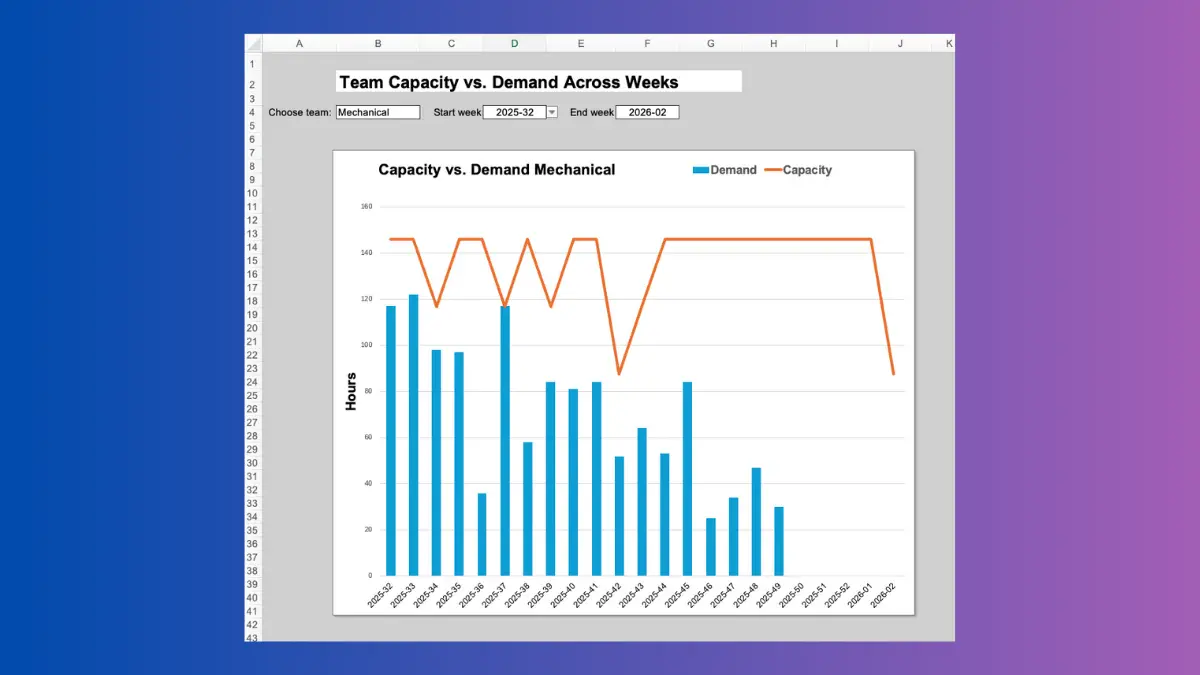
- Select a team and view its capacity vs. demand over time.
- Use the daily, weekly, or monthly summaries to see trends.
- Watch how workload shifts when plans change or when you add more demand.
The dashboard reads from the summary sheets and shows a clean view of where your team stands — overloaded, balanced, or underutilized.
Analyze project workload by team
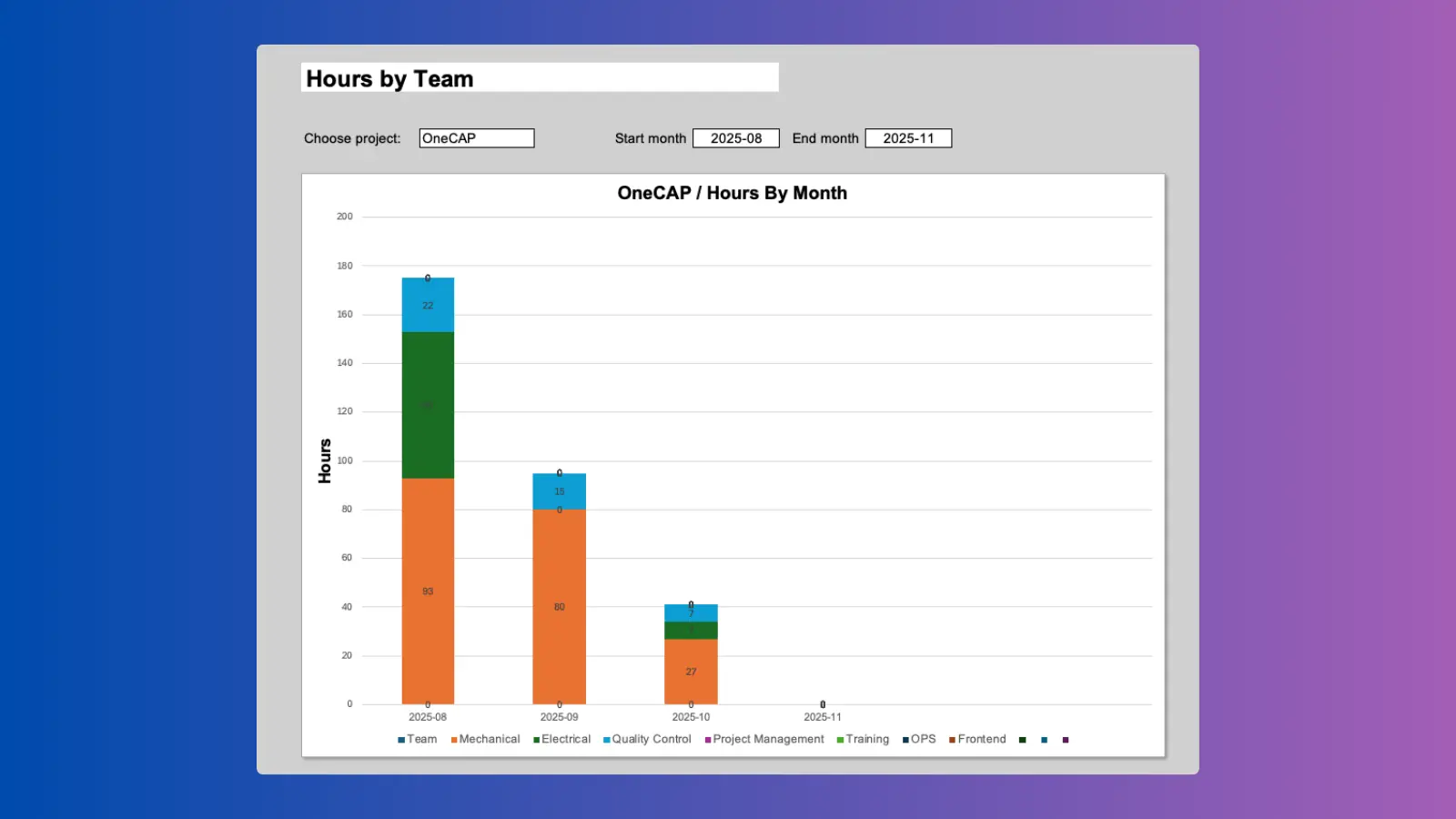
This chart gives you a deeper view of how a single project uses team capacity. You select a project and a range of months, and the chart shows how many hours each team contributes during that period. It helps you see which teams carry the most work, when their workload peaks, and how demand shifts over time. This view is especially useful for planning cross-functional projects and for discussing resource needs with management.
Customize It Any Way You Need
You can extend and customize the planner in any way you want, as long as you’re comfortable with advanced Excel stuff like structured tables, formulas like SUMPRODUCT and INDEX or dynamic ranges. We made the planner to be as straightforward as possible, so you can see how everything connects. For example, you can create additional summary tables or build new charts to get the exact insights you need.
How to Group Your Resources (Teams, Roles, Departments, etc.)
The template uses a “Teams” column to group and classify resources. This is the default way we show capacity and demand by group. But “Teams” is just the label we chose for this template — you can use any category you use at work.
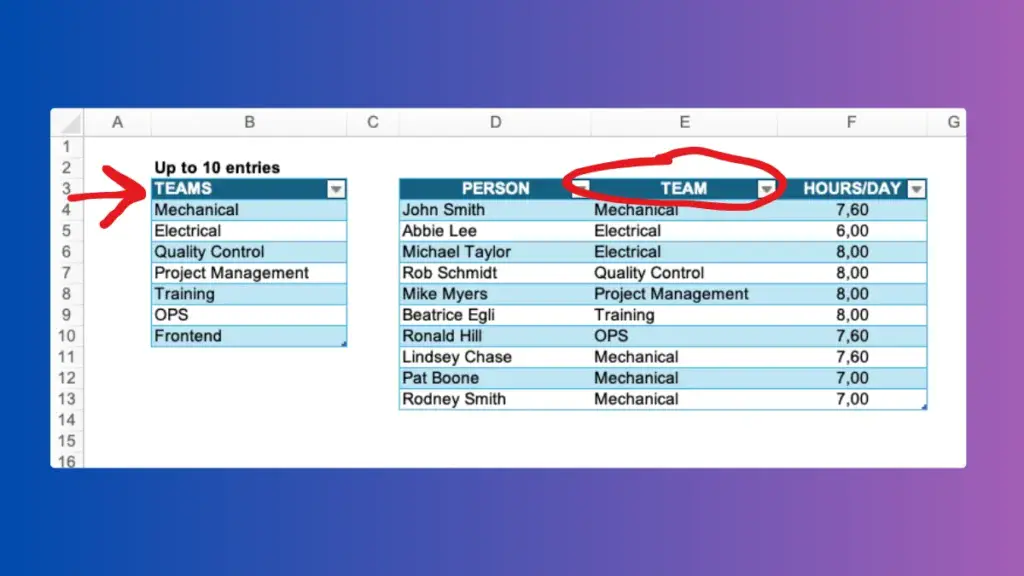
The field can hold other types of groupings, such as Role, Functional Area, Skill Group, or Department. Use whatever categories make sense for your organization!
We recommend keeping the column name Teams in the data tables, because some formulas refer to it. You can rename how it appears in charts or dashboards without affecting the logic.
With a little bit of effort, you can also replace the Teams label entirely and adapt the formulas and table references to match your own naming. It’s not a big deal.
How Demand and Capacity Are Calculated
- Each person is assigned to a team, and this team link is what allows the planner to calculate workload.
- Capacity comes from the working hours you define for each person.
- Demand comes from the hours you schedule for them on projects.
- By tying each person to a team, the planner can total all available hours for that group and compare them with the hours assigned.
- This gives you a clear view of how much work each team can handle and where overloads or gaps appear.
Limitations
The following limitations apply to the template:
- Maximum planning period: 730 days (approx. 2 years)
- Up to 30 projects*
- Up to 20 team members*
- Up to 10 teams
* For optimal performance. More entries will slow down the worksheet.
About me
 As a Senior Project Manager I have managed large corporate projects for more than 10 years: SAP implementations, projects in logistics and engineering as well as finance projects. Launched Caperity in 2025 to offer a simple resource planning solution for technical teams.
Frequently asked questions
Can the planner be customized?
Yes. You can customize the planner in any way you want, as long as you’re comfortable with advanced Excel features like structured tables or formulas like SUMPRODUCT.Does the planner work with the latest Excel version?
Yes. The planner works with current versions of Excel – both Windows and Mac.Does the planner work with Excel on Mac?
Yes, in fact the creator of this tool uses a Mac.Does the planner work with Google Sheets?
No, it is specifically designed for Excel.Is the file password-protected?
No. It’s completely open and you can access all sheets without restrictions.How far ahead can I plan with this sheet?
You can plan up to 730 days (about two years). That gives you enough room for shorter and longer projects, portfolio planning, and anything that stretches across multiple months.Can I track vacation or personal leave in this planner?
No. The planner only handles holidays. It doesn’t track vacation or other types of leave. If you need a more complete view of resource availability that includes leave, check out our simple cloud-based resource planner, Caperity.What if I’m not happy with the planner?
Easy. We offer a 30-day money back guarantee. If you find out the planner doesn’t work for you, just contact us and request a refund within 30 days after the purchase.Is your payment process secure?
Yes. We use FastSpring, a trusted US payment services provider who manages order fulfillment.Get the Capacity vs. Demand Planner
- Review capacity vs. demand for up to 2 years
- Daily calendar
- Fully customizable Excel template
- Step-by-step instructions
- 30-day money-back guarantee
You will get an email with a download link. Secure payment via FastSpring.
Questions? Contact support